
FAQ
Who should I contact if I have technical questions or issues with meddevo?
First, please consult the meddevo manual for guidance on your question. If you do not find a suitable answer there, contact your company’s Key User, who is specially trained and can resolve most matters directly. If the issue cannot be resolved, you can contact the meddevo support chat or use the bug reporting form.
––––––––––––––––––––––––––––––––––––––––––––––––––––––––––––––––––––––––––––––––––––––
Can I use meddevo offline?
meddevo is not available to work in offline mode as it operates as a cloud-based SaaS platform. This ensures secure, real-time data access, automatic updates, and backups without requiring local installations.
Why Online Access is Necessary
- Always Up-to-Date: Automatic updates ensure security and compliance.
- Secure & Reliable: Cloud storage protects against data loss and cyber threats.
- Automatic Backups: Prevents loss due to errors or failures.
- Scalability & Performance: No need for expensive server infrastructure.
- Access Anywhere: Use meddevo from any device with an internet connection.
For offline reference, users can export data manually. For questions, contact our support team.
––––––––––––––––––––––––––––––––––––––––––––––––––––––––––––––––––––––––––––––––––––––
What happens when multiple people or processes work in meddevo at the same time?
Manual Changes During Running Jobs (Bulk Change or Data-imports)
You can manually change and save entries at any time — regardless of whether a job is currently running or not. When a job is actively editing the same entry as you are, the changes will be applied in order of who saves first and become visible in the corresponding formfield of the entry once the change is applied. All changes will be visible in the entries audit trail.
Important:
It is possible that a user makes a manual change while a bulk change, import, or other mass update is running in the background. In this case, the background process may overwrite the manual change if it re-applies the original values afterward.
Please note:
- All changes are executed in the order they were initiated.
- For large imports or bulk updates, it may happen that the manual change is executed first and then overwritten by the background process or vice versa.
Recommendation:
The editorial responsibility for the changes lies with the user. It is recommended to establish internal processes to avoid conflicts, such as:
- Setting a fixed time window for bulk changes (e.g., every Thursday, only after 3 PM).
- Announcing bulk changes via email in advance to inform all involved parties.
This way, the risk of unintended overwrites can be minimized, and data integrity maintained.
––––––––––––––––––––––––––––––––––––––––––––––––––––––––––––––––––––––––––––––––––––––
I have data that is not showing up in documents. Why?
If you are wondering why certain data does not appear in your documents, here are some common reasons and steps to resolve the issue.
1. Data Is Not Approved
Approval is required for all types of data to ensure it appears in documents. This includes:
- TD Data, Product Group Data, Product Data: Ensure all product details are approved.
- Other Data: Such as patient populations or indications. Even if product data is approved, missing approvals for other data will prevent it from appearing in documents.
Solution:
Check the approval status of all relevant data in the system and ensure they are fully approved. This can be done easily by clicking on the Connections of an entry. In the connection overview you can see the status and version of the referenced entries.
2. Document Monitoring Has Not Been Refreshed
Document monitoring continuously ensures changes are reflected in documents. However, due to the number of documents in the system, this process can take several minutes. Recent changes may not immediately appear.
Solution:
Use the "Refresh Monitoring" button in the folder preview to speed up the monitoring of a product file or selected documents within a file and ensure the latest changes are captured.
3. Data Origin and Consistency Issues
Data can be stored at various levels:
- eTD Level
- Product Group Level
- Product Level
This flexibility allows customization but requires consistency.
Common Scenario:
If data is linked at the product group level in a template and you switch to maintaining it at the product level, the document will continue to display the previous information unless adjustments are made.
Solution:
Decide on a single system for data maintenance. Update the document design to align with the new data level. Ideally, delete redundant data from other levels (e.g., product group level) to avoid conflicts.
4. Template Changes are not automatically applied to Documents
When a document is created from a template, it becomes independent of subsequent template changes.
Solution:
To apply template changes to an existing document, create a new version of the document using the updated template.
We hope that these common reasons and suggested solutions can help you - if you have any questions, please do not hesitate to contact us or leave feedback on this article.
––––––––––––––––––––––––––––––––––––––––––––––––––––––––––––––––––––––––––––––––––––––
I have documents that are not showing up in my folder preview. Why?
A document will only appear in the folder preview if all of the following criteria are met:
- The document is assigned to the current entry or to a linked entry (e.g., eTD, Product Group, or Product).
- The document uses the same regulatory framework as your folder preview.
- The folder preview specifically requests the document type assigned to your document.
If all these conditions are met, the document should be shown.
––––––––––––––––––––––––––––––––––––––––––––––––––––––––––––––––––––––––––––––––––––––
What is a "Regulatory Focus"?
"Regulatory Focus" is our meddevo intern terminology for different regulations like MDR, US-FDA, ANVISA etc. While some information are universal, other can be required by only a specific regulatory focus. When setting your regulatory focus all information not relevant to it are hidden, so that you for example only find those collections that are relevant for you.
You can set the regulatory focus at the top of the screen. If you don´t enter a regulatory focus, all contents for all different regulatory focus are displayed.
––––––––––––––––––––––––––––––––––––––––––––––––––––––––––––––––––––––––––––––––––––––
I performed an export of data but some texts were cut off. Why?
In meddevo you can store a lot of data and you can always export it to an Excel file. If a field contains more than 32.767 characters, the resulting Excel file will have problems because Excel has a limit of 32.767 characters per cell.
––––––––––––––––––––––––––––––––––––––––––––––––––––––––––––––––––––––––––––––––––––––
How does the Rest API of meddevo work?
meddevo offers the option to connect via a Rest API. Here you can find our Rest API documentation to check the usability to another Rest-API-solution in advance: https://api.meddevo.com/docs
––––––––––––––––––––––––––––––––––––––––––––––––––––––––––––––––––––––––––––––––––––––
Does meddevo offer any features for handling literature (e.g., literature reviews or references)?
No, meddevo currently does not offer any dedicated functionality for literature or literature reviews. You can create a custom solution if needed, and meddevo might provide something in the future, but it is not on our current roadmap—if you need a solution soon, please use other methods rather than waiting. Of course, literature can still be uploaded as normal documents and, for example, added to technical documentation like any other file.
––––––––––––––––––––––––––––––––––––––––––––––––––––––––––––––––––––––––––––––––––––––
How can I use special characters in meddevo?
Special characters are frequently used in technical documentation for medical devices (e.g. under EU MDR or IVDR) — for instance, in specifications, risk assessments, clinical evaluations or instructions for use (IFUs). As many of these characters are not readily accessible on standard keyboards, the table below provides a list of the most commonly used special characters alongside their ALT codes for Windows.
Another option is using the Emoji & Symbol Picker: Press Windows + . (dot) to quickly access many common special characters & mathematical symbols.
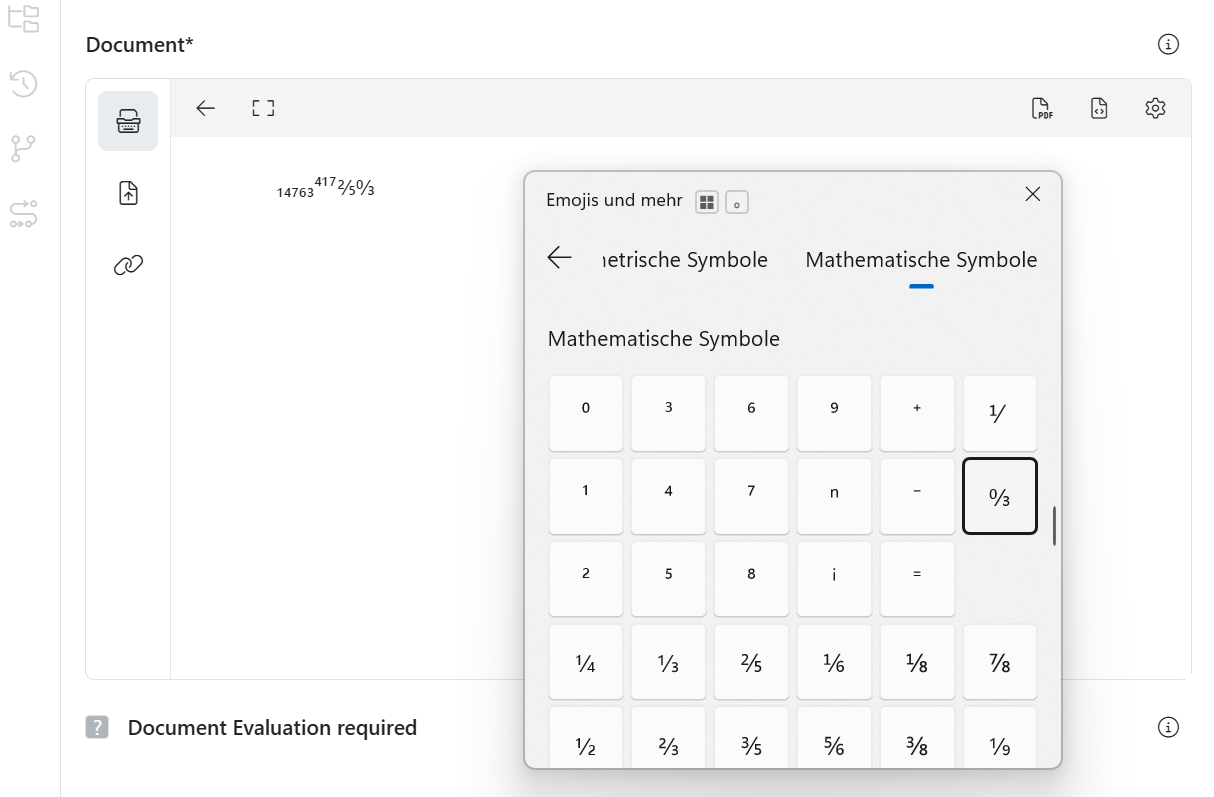
Note for macOS users:
Press Ctrl + Cmd + Space to open the Character Viewer. From there, you can search for and insert special characters such as “±”, “µ”, or “°”.
How ALT codes work (on Windows):
Hold the ALT key and type the corresponding decimal code using the numeric keypad. For more infos see Wikipedia.
| Character | Name | Usage / Relevance | ALT Code (Windows) |
|---|---|---|---|
| ± | Plus-minus sign | Tolerances, measurement uncertainty | ALT + 0177 |
| ° | Degree symbol | Temperature values, angles | ALT + 0176 |
| µ | Micro symbol | Units like µm, µg, µL | ALT + 0181 |
| × | Multiplication sign | Mathematical expressions | ALT + 0215 |
| ÷ | Division sign | Mathematical expressions | ALT + 0247 |
| ∅ | Diameter sign | e.g., catheter size | ALT + 0216 |
| Ω | Ohm symbol | Electrical resistance | ALT + 234 |
| ™ | Trademark symbol | Trademark references | ALT + 0153 |
| ® | Registered symbol | Protected brand names | ALT + 0174 |
| – | En dash | Typography, range indication | ALT + 0150 |
| — | Em dash | Typography, emphasis | ALT + 0151 |
| ‰ | Per mille symbol | Chemical concentrations | ALT + 0137 |
| ¹ | Superscript 1 | Exponents, units | ALT + 0185 |
| ² | Superscript 2 | E.g., m², cm² | ALT + 0178 |
| ³ | Superscript 3 | E.g., cm³ | ALT + 0179 |
––––––––––––––––––––––––––––––––––––––––––––––––––––––––––––––––––––––––––––––––––––––
What are Name field and Name field 2 in the Collection management?
You may have come across "Name field" and "Name field 2" when looking at a collection, or even when creating your own. We know that their meaning is not entirely intuitive.
In the name field, you can select all contentfields from this collection that are of the type Text --> Text field. This will be the information that will be displayed when you reference this collection somewhere else.
Let's have a look at an example. For the Components collection, our name fields are the component code and name:
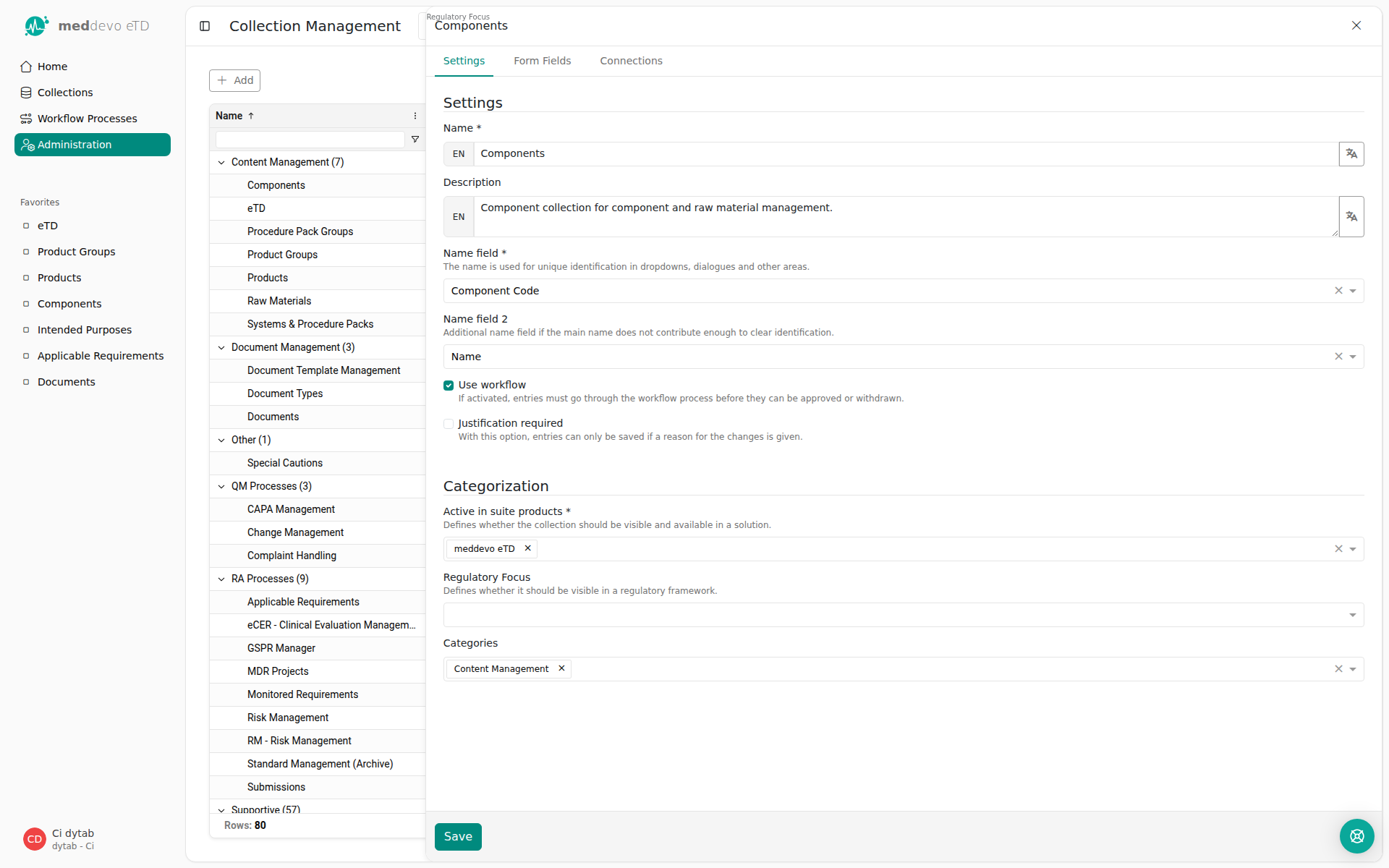
Components are referenced in the respective Product - you can pick and choose the components relevant to your product. It would be difficult to distinguish components based on their CAS number or supplier, so we need to display meaningful information that makes it easy for you to select the correct items - so we use the information from the Name field and the Name field 2!
You will therefore see the component code and component name displayed and can easily pick the correct entries.
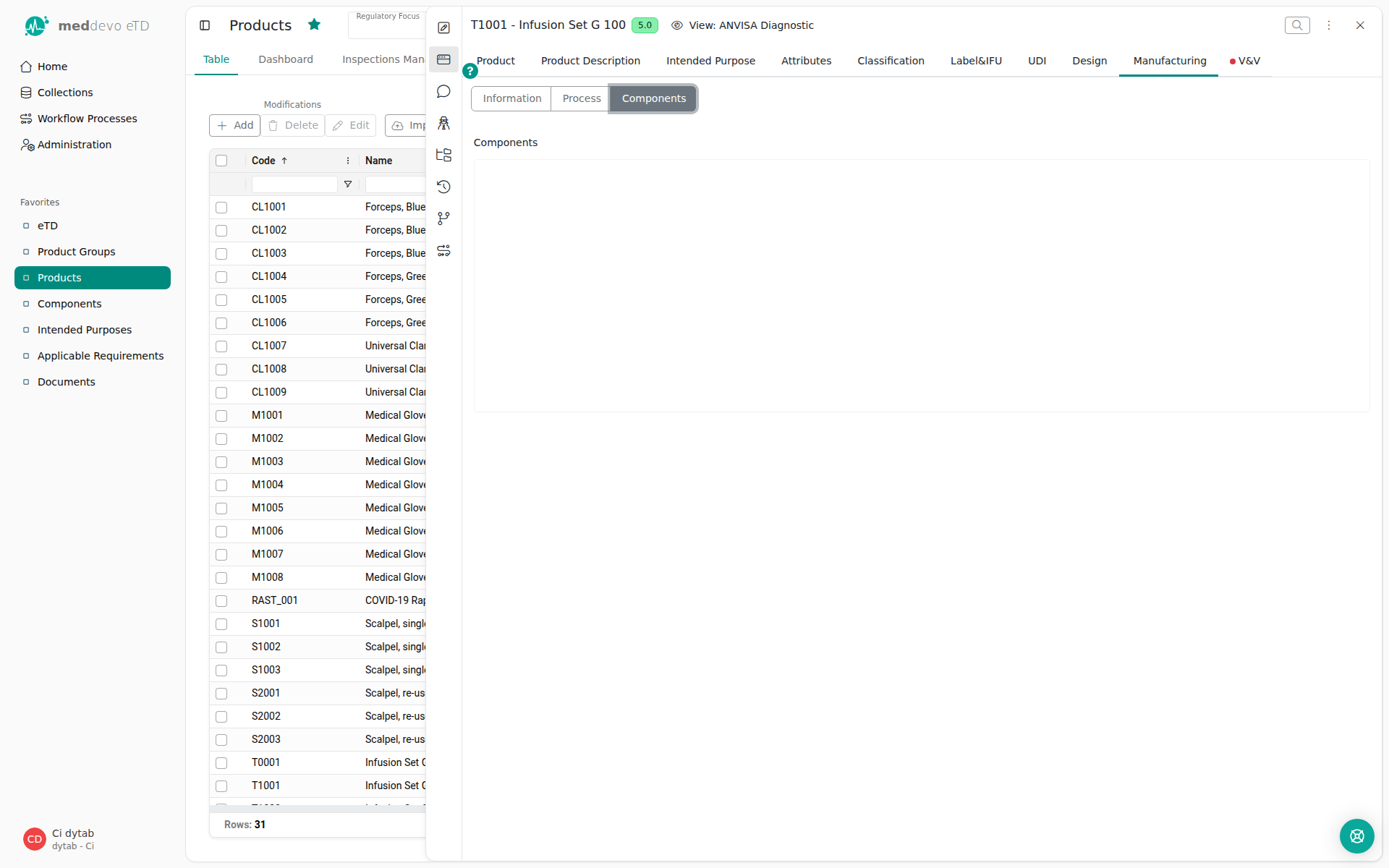
So if you ever find yourself wondering what to choose for Name field and Name field 2, just think about which information makes it easiest to distinguish the entries.
––––––––––––––––––––––––––––––––––––––––––––––––––––––––––––––––––––––––––––––––––––––
I viewed a deleted entry, and now all deleted entries suddenly appear in the collection—why?
This is a known display error: If you open a deleted entry from the recycle bin and then close it again, it is possible that all deleted entries are briefly shown in the collection view. However, these entries are **not** restored by this action. After reloading the page, the display will return to normal and your collection will once again only show the correct (non-deleted) entries.
––––––––––––––––––––––––––––––––––––––––––––––––––––––––––––––––––––––––––––––––––––––
Why does the meddevo interface look “strange” or elements seem to be missing?
Check that your screen resolution is set to at least 1920 x 1080 and that your browser zoom is at 100%. Other settings or lower resolutions can lead to display problems, overlapping areas, or missing buttons.
––––––––––––––––––––––––––––––––––––––––––––––––––––––––––––––––––––––––––––––––––––––
Which browsers are supported?
The meddevo Writer beta is supported in the latest version of Chrome and in other Chromium-based browsers (such as Edge, Opera, Brave). If you use a different browser, we cannot guarantee full functionality.
––––––––––––––––––––––––––––––––––––––––––––––––––––––––––––––––––––––––––––––––––––––
Why do I get an error when I try to open the ZIP I downloaded from meddevo?
When downloading folder previews or submissions as ZIP files from meddevo, you may encounter problems extracting the archive on Windows computers. This is due to a limitation of the built-in Windows ZIP tool, which only supports file paths up to 260 characters. If any file or folder inside the archive exceeds this length (including all parent folders), the extraction can fail, and you may see an error message.
Solution:
We recommend using 7-ZIP to extract ZIP files downloaded from meddevo. 7-ZIP can handle longer file paths and will allow you to access all files in the archive without issues.
Note:
This path length limitation is specific to Windows. On macOS (1024 characters) and Linux (4096 characters), much longer paths are supported.
Learn more (Microsoft Docs – Maximum file path limitation)
––––––––––––––––––––––––––––––––––––––––––––––––––––––––––––––––––––––––––––––––––––––
How do I save my own view of the collection in the overview?
Go to the desired overview within the collection (e.g., Products). Click the small dropdown arrow next to the view name (for example, "Products"). Select "Create."
Attention:
Please refresh your browser after saving and before structuring your newly created view.
Give the new view a unique name and set the regulatory focus if needed.
With the "Show sidebar" option, you can further edit and customize your view.
If you want to share the created view with other users, switch to a Collaborative View. As soon as the icon with the three people appears, your view becomes visible and usable for other users on the platform – however, only you can make changes to it.
Tip:
You can switch between private and collaborative views at any time and always have full control over your personal view!
––––––––––––––––––––––––––––––––––––––––––––––––––––––––––––––––––––––––––––––––––––––
Can meddevo support me in gathering clinical evidence?
No, meddevo does not currently offer a dedicated system for supporting clinical evaluation procedure steps such as collecting clinical evidence. While meddevo allows you to create custom collections to document clinical evidence and use this information in your documents, there is no built-in clinical procedure that meets MDR/IVDR requirements for gathering evidence. As always, meddevo provides secure data storage, but it does not facilitate clinical evidence collection or the corresponding regulatory workflows.
––––––––––––––––––––––––––––––––––––––––––––––––––––––––––––––––––––––––––––––––––––––
Can meddevo support me in performing literature reviews and managing references?
No, meddevo does not provide a dedicated literature search module or direct support for conducting literature reviews. However, literature search findings can be uploaded to meddevo as documents, and you can save the outcomes of your literature reviews in custom collections. While it is possible to reference literature in your documentation, our current writer filetype does not offer the same referencing experience as Word, and there is no integration with reference management tools such as Citavi.
––––––––––––––––––––––––––––––––––––––––––––––––––––––––––––––––––––––––––––––––––––––
Can meddevo support me in performing safety data searches?
No, meddevo does not provide a dedicated module or direct support for conducting safety data searches. However, results from safety data searches can be stored in custom collections and used in your documents. meddevo allows data storage and documentation, but there is no specific module or workflow to support the safety search procedure.
––––––––––––––––––––––––––––––––––––––––––––––––––––––––––––––––––––––––––––––––––––––
Why is screen resolution important?
For an optimal experience with the meddevo platform, we recommend setting your screen resolution and browser zoom level before starting the setup process. This ensures that all menus, tables, and interface elements are displayed as intended. Consistent settings between your team and our support staff help prevent confusion and display issues, especially during onboarding and training.
Recommended Settings
- Screen Resolution: Full HD (1920 x 1080 pixels)
- Browser Zoom: 100%
- Supported Browsers: meddevo Writer (beta) is supported on Chrome and all Chromium-based browsers (e.g., Edge, Brave, Opera).
Where do I set these values?
1. Check or Adjust the Screen Resolution on Your Computer
- Windows:
- Right-click on the desktop and select Display settings.
- Under Display resolution, select 1920 x 1080 (Full HD).
- Close the settings window.
- Mac:
- Click the Apple menu and choose System Settings (or System Preferences), then select Displays.
- Under Resolution, select 1920 x 1080 or “Default for Display” if using a Full HD monitor.
2. Set the Browser Zoom Level
- Chrome or Other Chromium Browsers:
- Click the three-dot menu at the top right corner of your browser.
- Look for Zoom and ensure it is set to 100%.
- You can also use
Ctrl+0(Windows) orCmd+0(Mac) to reset the zoom to 100%.
––––––––––––––––––––––––––––––––––––––––––––––––––––––––––––––––––––––––––––––––––––––
Which browsers are supported?
meddevo is completely web-based and runs best with any Chromium-based browsers such as Google Chrome, Microsoft Edge, Vivaldi or Brave.
Mozilla Firefox is supported as well.
All other browsers may work, but are not validated and confirmed by us. If you recognize issues with displaying data or any other issues, please switch to a recommended browser.