
Document Hub for Users
The Document Hub provides you with a simple, centralized way to access relevant documents that have been released to you by your organization.
1. Accessing the Document Hub
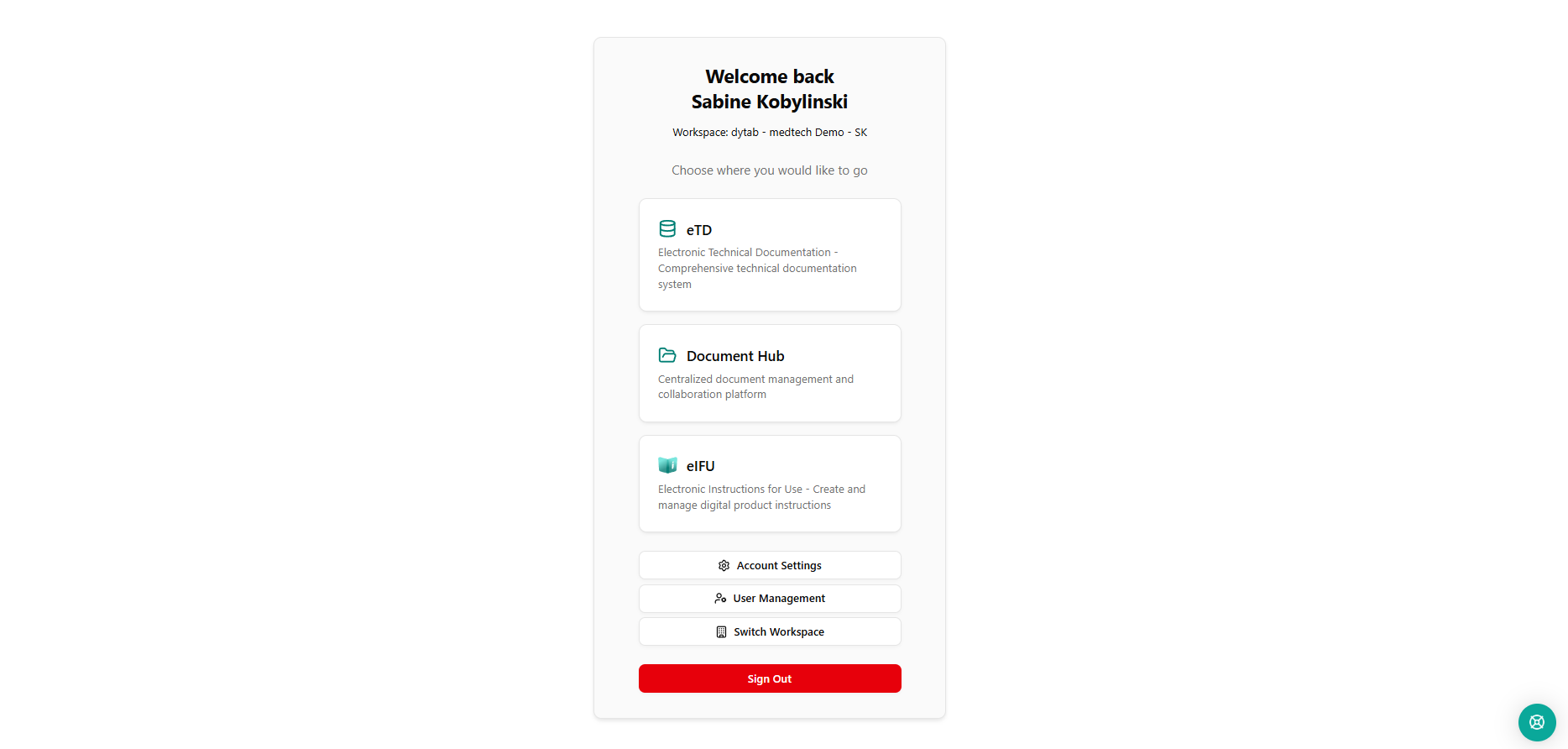
After logging into meddevo, you will first land on an overview page where you can select from the available meddevo apps. Apps to which you do not have access are greyed out. From this page, you can go directly to the Document Hub.
If you are already in the meddevo eTD workspace, you can access the Document Hub by clicking on your initials in the lower left corner and then selecting "Apps" to return to the previous selection screen. From there, you can switch to a different app.
2. Searching and Filtering Documents
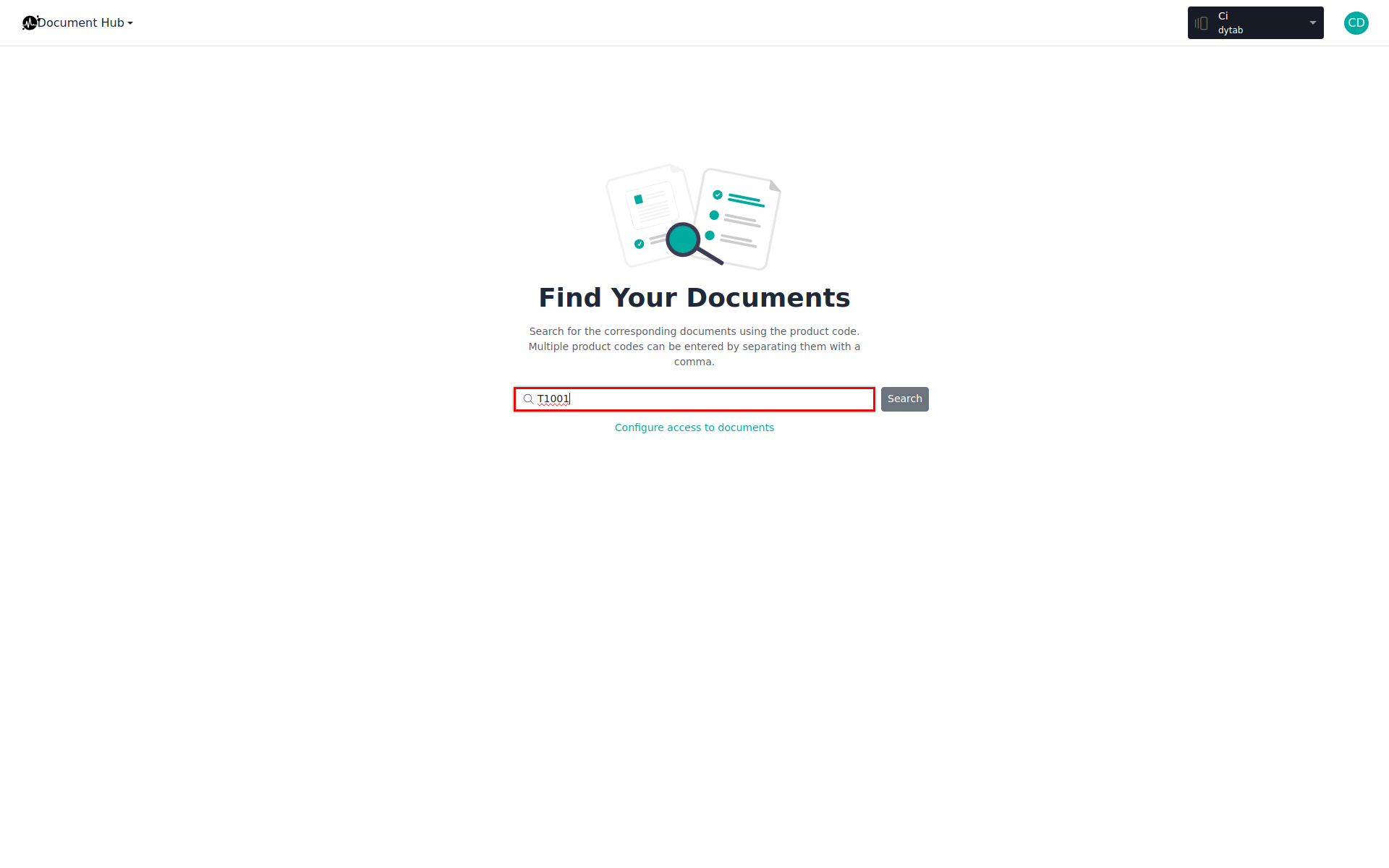
In the Document Hub you will find a search bar.
Tip: You can search for one or more products by entering the appropriate product codes (separate multiple codes with commas).
After starting the search, you will see a list of all documents
- that belong to the products you searched for and
- that your role permits you to access.
3. Selecting and Downloading Documents
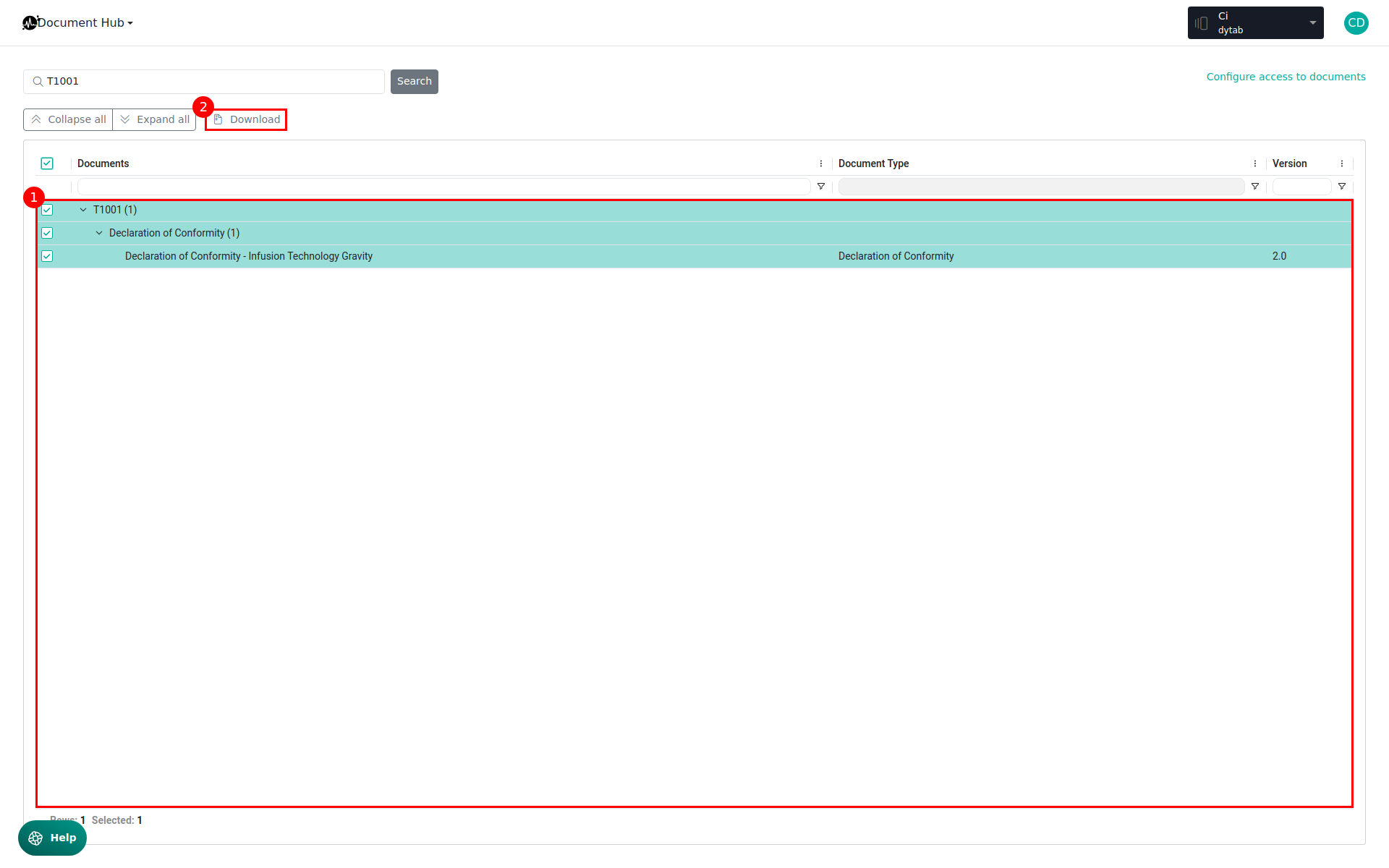
- Select the desired documents using the checkboxes—either individual documents or all at once.
- Then click the Download button. (1)
- The selected documents will be bundled in a ZIP file and made available for immediate download. (2)
Notes:
- You will only see documents for which you have the appropriate permissions.
- For adjustments to permissions or further settings, please contact your administrator.
See also: