
EUDAMED Manager
With the new EUDAMED Manager, you can easily reconcile and manage your product data from meddevo with the European Database on Medical Devices (EUDAMED). This feature provides you with an overview and control of your data integrity and supports you in generating the required XML files for bulk upload to EUDAMED.
Overview: What Does the EUDAMED Manager Do?
The EUDAMED Manager provides two main functions:
- Data Reconciliation & Synchronization
- Compares product data in meddevo with data in EUDAMED.
- Shows:
- Which products are in meddevo but not yet in EUDAMED,
- which products are listed in EUDAMED but not in meddevo,
- as well as all matches and any differences between synchronized products.
- XML Creation for Bulk Upload
- Automated generation of EUDAMED-compliant XML files for product registration or updates.
- XML files can be used directly for bulk import into EUDAMED.
Prerequisites: Checklist for Use
A detailed overview of all Formfields and Collection used in the EUDAMED Manager see here. To make full use of the EUDAMED Manager, please ensure the following preparations have been completed:
- Legal Manufacturer Available and Released:
- In the "Contacts & Legal Entities" collection, the legal manufacturer must be maintained, released, and have a valid SRN.
- In the EUDAMED module itself, by clicking on the company name on the top right, you can access "Manage SRNs". SRN for the EUDAMED Playground can be set here as well.
- Product Assignment:
- The legal manufacturer must be assigned to the respective product.
- Basic UDI-DI Codes Maintained:
- In the "Basic UDI DI Codes" collection, code and issuing entity must be stored and released.
- Link Basic UDI-DI:
- The Basic UDI-DI must be assigned to the products in the Product Collection.
- UDI-DI Maintained and Released:
- All required UDI-DIs must be entered, assigned to products, and released in the relevant collection.
- Product Data Complete:
- All mandatory fields required by EUDAMED must be maintained in the Product Collection. (An Excel template for data import is available to assist you.)
- Status 'Released':
- All relevant products and product groups must be released in meddevo.
Step-by-Step: Using the EUDAMED Manager
1. Review & Synchronization
- Open the EUDAMED Manager via the main menu.
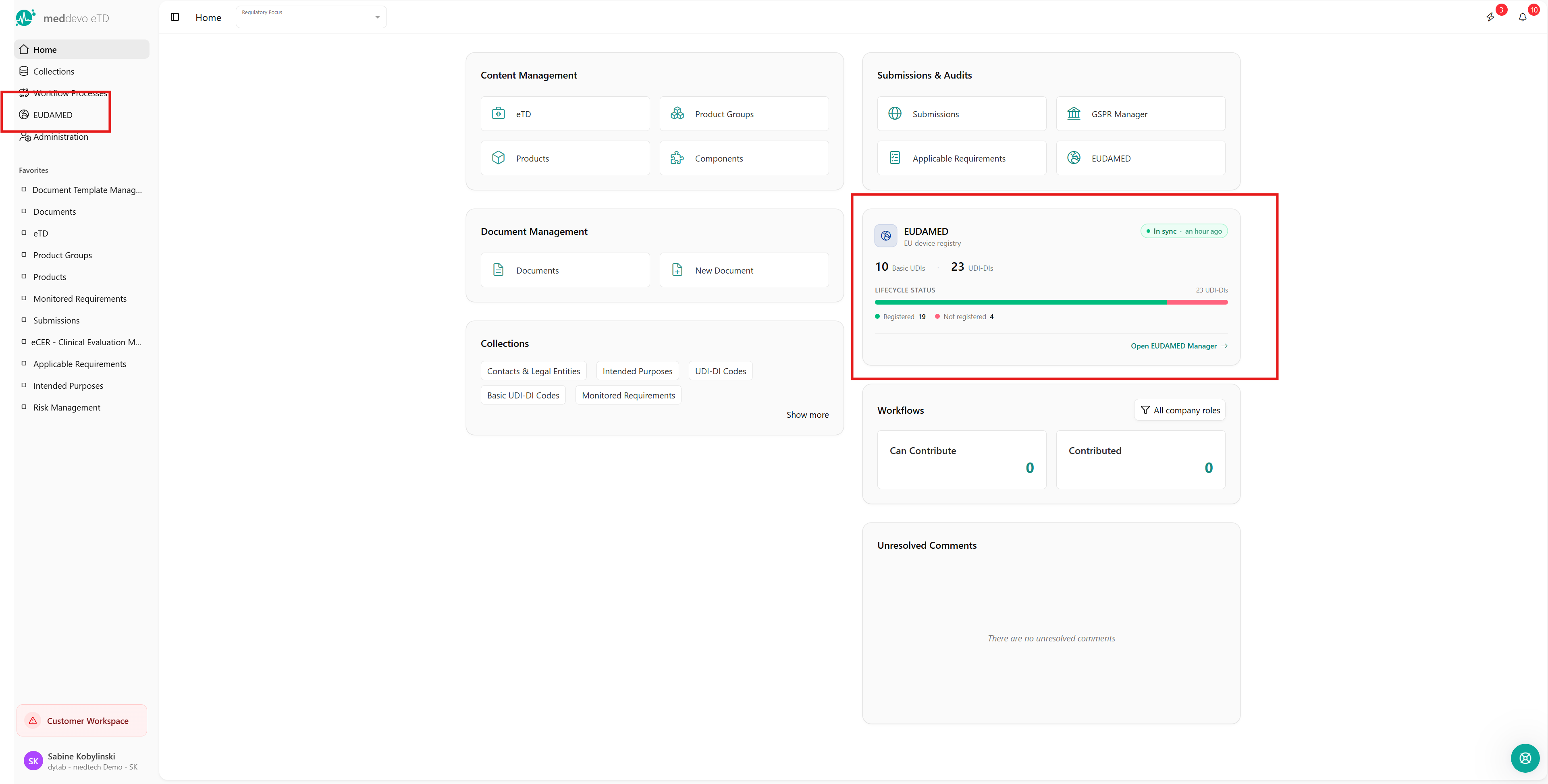
- You will receive an overview of discrepancies and synchronization status:
- Products/records that are only in meddevo or only in EUDAMED,
- as well as any differences between the two systems.
- If necessary, revise data in meddevo to correct errors or missing entries.
2. Generate XML File for Bulk Upload
- Select the specific products you wish to export.
- Click on Export.
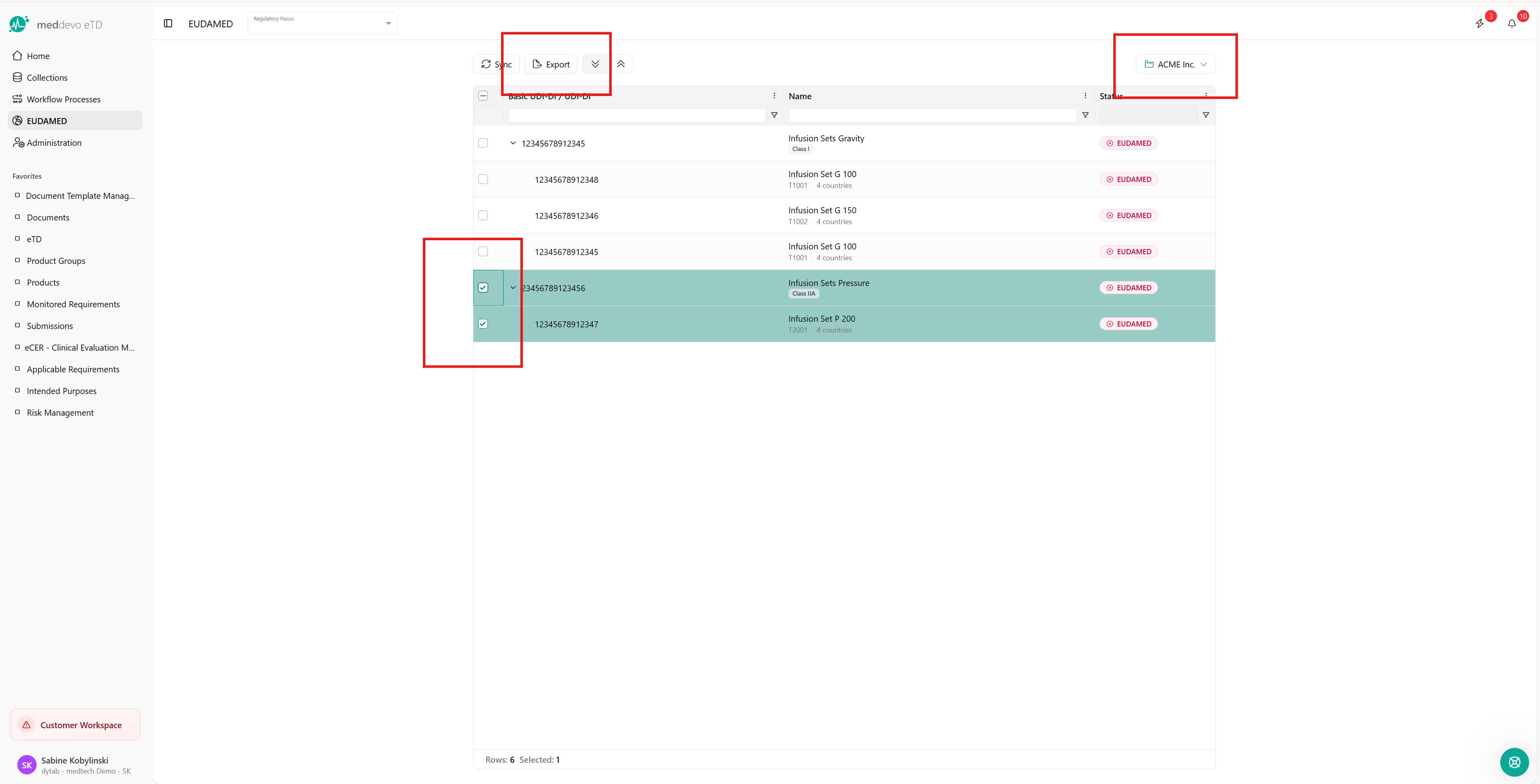
- The system will check for all mandatory information:
- If data is incomplete, you will receive an error message with correction instructions.
- If all data is complete, the XML file will be generated.
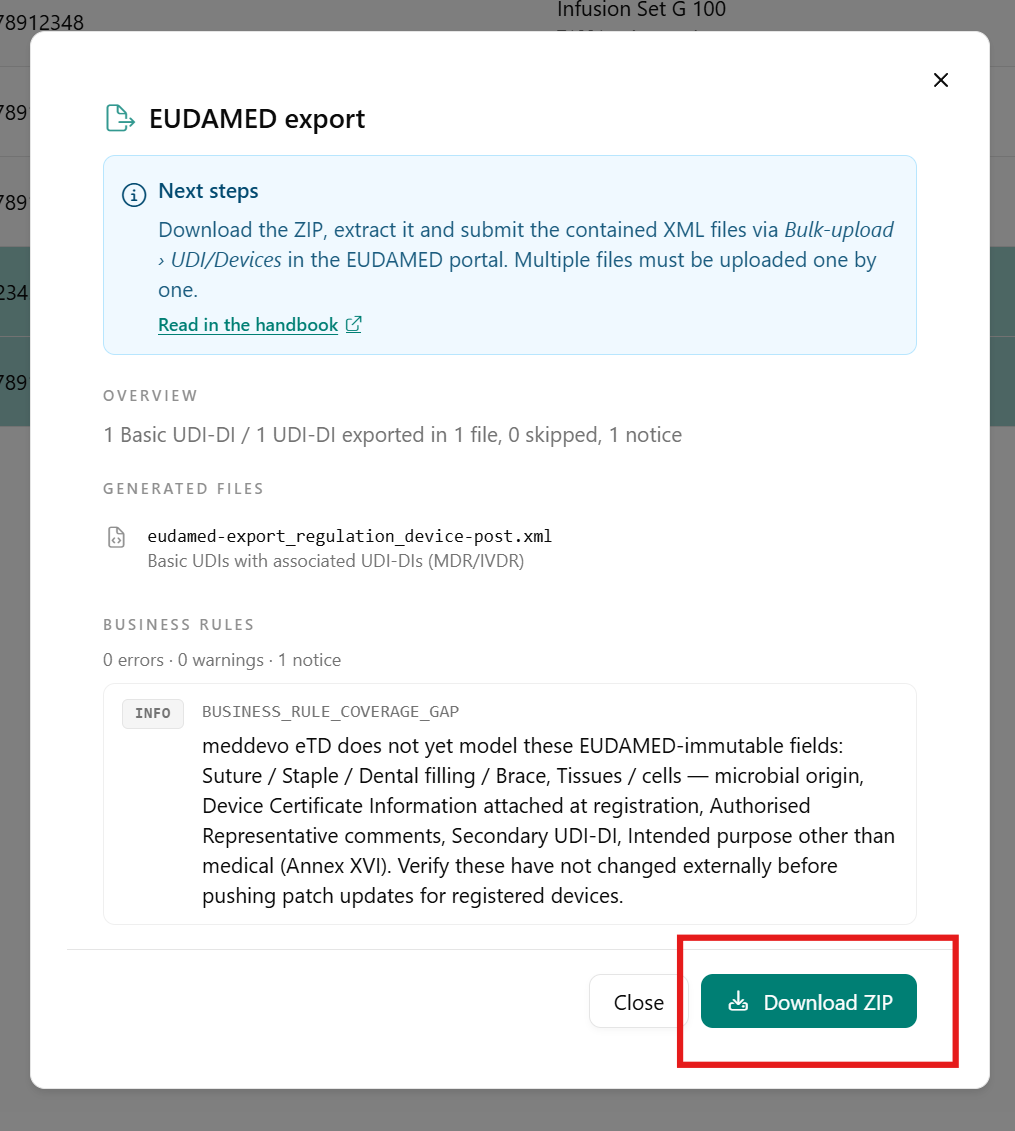
- Multiple SRNs? A separate file will be exported for each SRN. Select the appropriate company/SRN from the dropdown at the top right.
3. Upload Process in EUDAMED
- Log in to your EUDAMED account.
- Navigate to Data Transfer and select Bulk Upload.
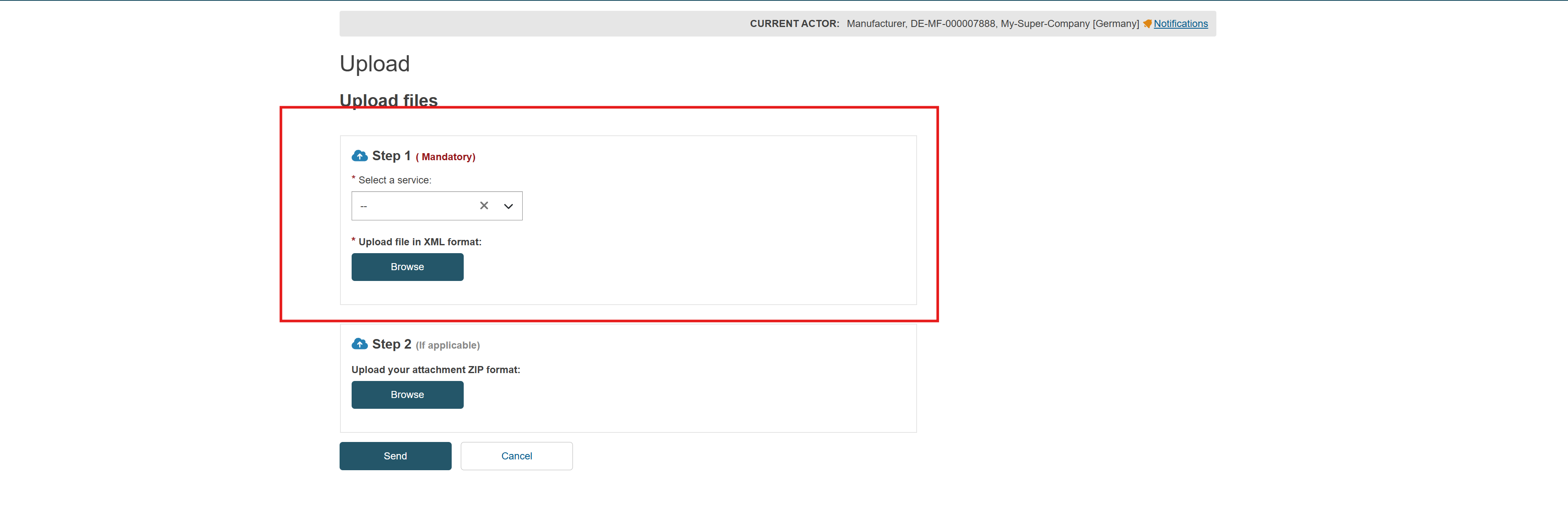
- Click on New Upload in the top right corner.
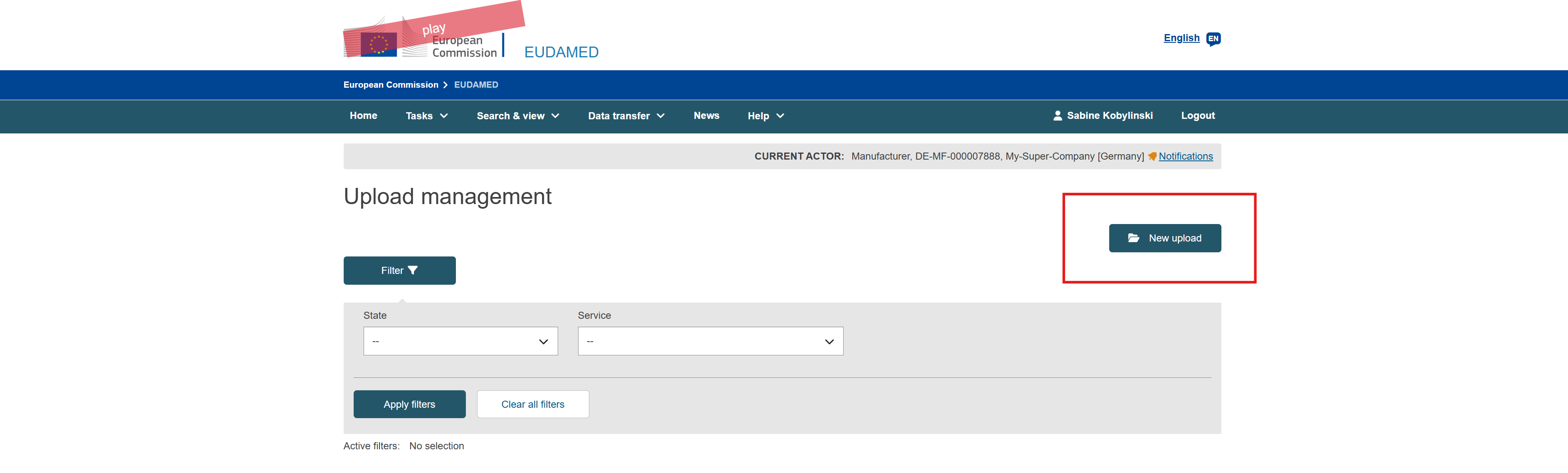
- Select the appropriate service type:
- For new registrations:
Upload of Legacy / Regulation Device / SPP (Basic UDI and UDI-DI / Master UDI-DI) - For updates:
Upload of UDI-DI / Master UDI-DI for existing Basic UDI-DI
- For new registrations:
- Step 2 can be skipped (see screenshot).
- Upload the prepared XML file and click Send.
- The upload process will start and your entry will be processed as usual by EUDAMED.
Switching Between EUDAMED Playground and Production
EUDAMED provides two separate environments: Production and Playground. Each environment has its own database and requires a separate SRN. The Playground environment is intended for testing and does not use the real SRN of your organization.
To support both environments, the EUDAMED Manager in meddevo allows you to switch between Production and Playground via a dropdown menu at the top right. When you select Playground, you can set the Playground SRN by clicking the adjacent dropdown and selecting Manage SRN. This allows you to generate XML files specifically for the EUDAMED Playground environment, using the correct test SRN.
Synchronization in Playground:
When the Playground environment is selected, all data reconciliation and synchronization actions in the EUDAMED Manager are performed against the Playground database. This means you can review, compare, and synchronize your meddevo product data with the data stored in the EUDAMED Playground, just as you would with the Production environment. This enables you to test your processes and data flows in a safe, non-productive environment before going live.
Note:
- The SRN used in Playground is not the same as your real (Production) SRN.
- Make sure to select the correct environment and SRN before exporting XML files or performing synchronization.
Current limitations
The following information is not yet supported and will be omitted from the export:
- Special Devices (e.g. Contact lenses, Spectacle Frames)
- Links to clinical investigations
- Secondary UDI identifier
- SRN of OEM manufacturer
- CMR Substances, Endocrine Disruptors, Human/animal-derived products, Medicinal products
- Annex XVI products (intended purpose other than medical)
Tips & Notes
- Use our Excel Template to conveniently collect or import product data.
- Make sure that all SRNs and issuing entities are correct and up to date.
- In case of issues or warnings, the system will provide precise feedback about missing fields or inconsistencies during the export process.