
Review and Approval Workflows in meddevo
Workflows & Company Roles
Bulk Approval
Workflows in meddevo allow users to manage review and approval processes for entries in collections, such as ‘Documents’ or ‘eTD’, and also to withdraw them.
How Workflows Work
For collections that use workflows, the approval process by default consists of two steps. The first step is a review, handled by the RA Manager, followed by approval from the RA Director. Who can participate in a workflow is determined by the company roles assigned to each user. These roles are defined within the system based on the company roles assigned to each user in the workspace. Administrators can create custom workflows to deplace the default if other roles or different/more steps are required.
1. Starting or Contributing to a Workflow
To start or contribute to a workflow open the relevant entry and click on the following icon in the action bar.

Next, the user will either see that they do not have permission to start a workflow (screenshot below), an option to start a workflow (second screenshot below) or an option to pick which workflow to start, if several are available (third screenshot below).
Please note, that several workflows are only possible for Document Types, while you can not configure several workflows for collections. The configuration of workflows is described in Workflow Templates.
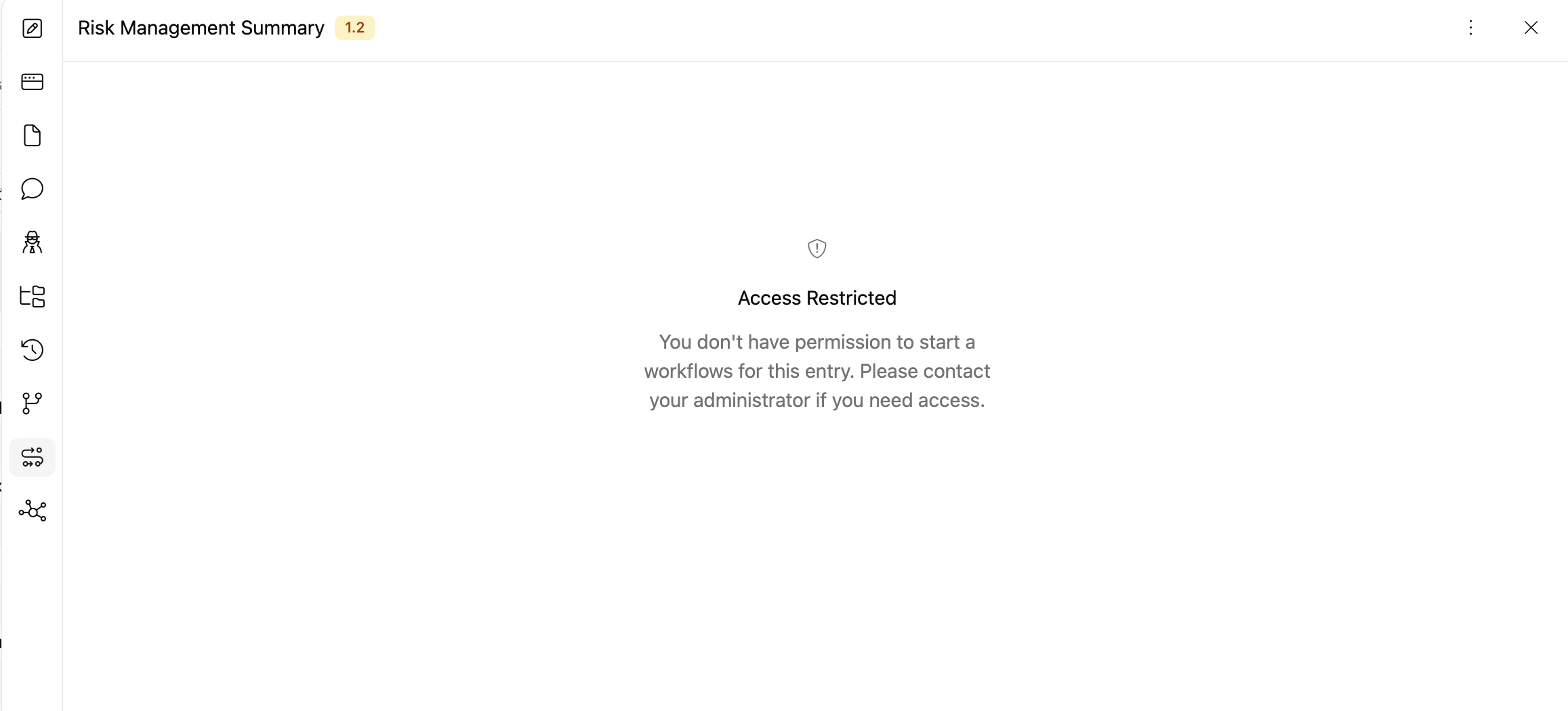
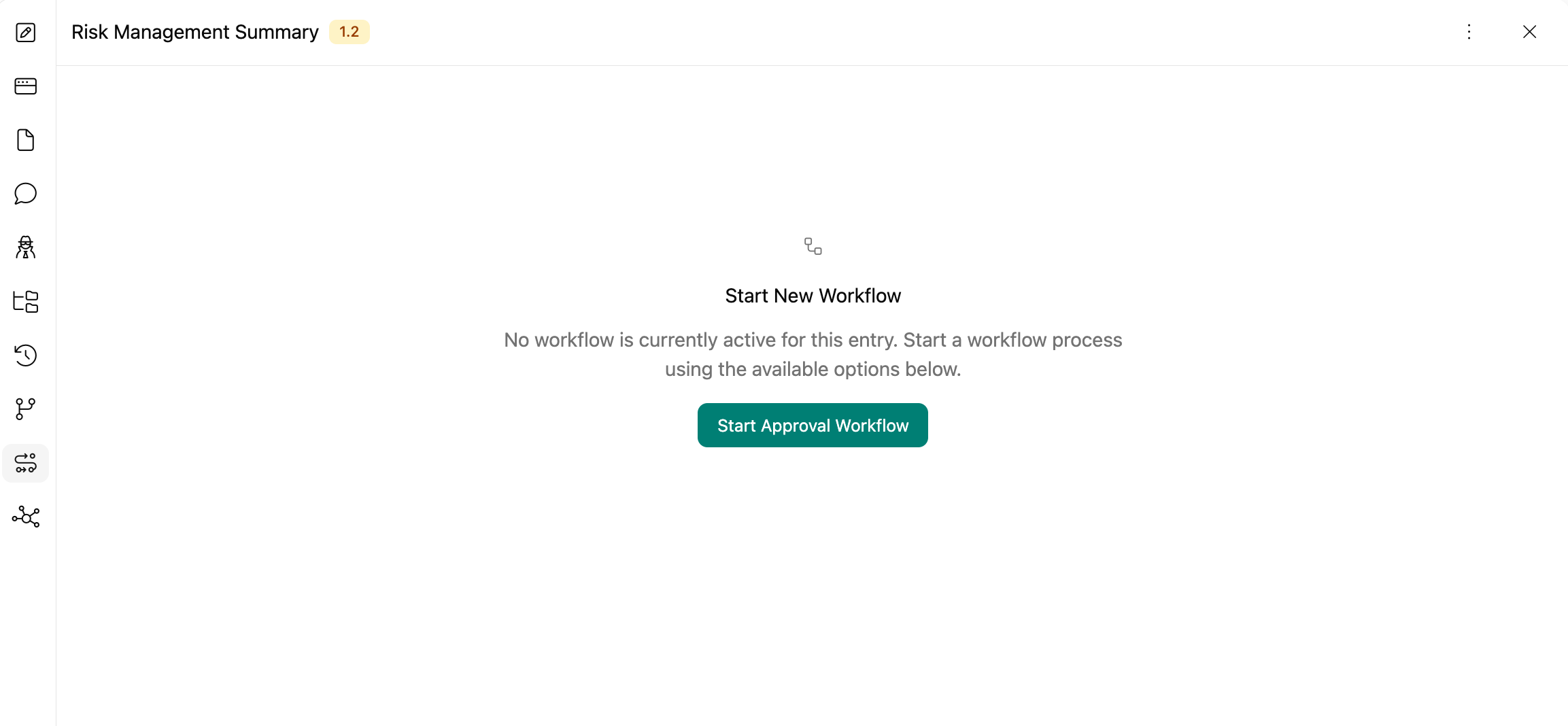
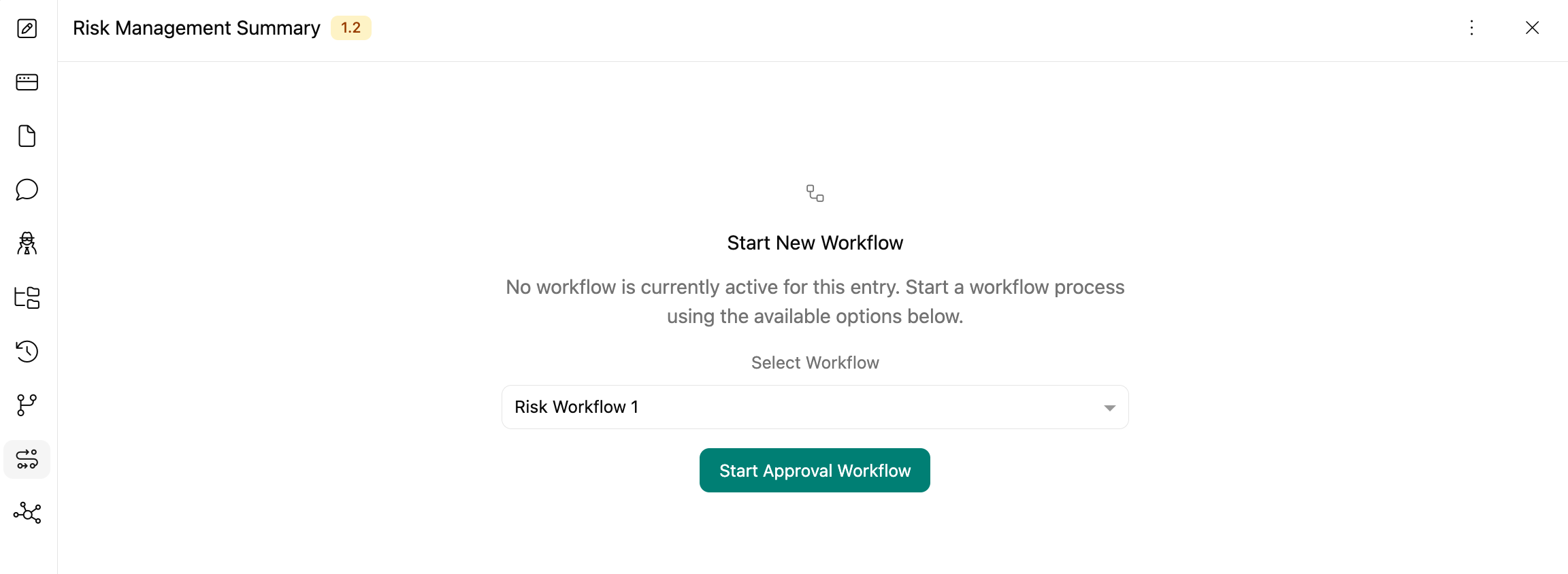
Once a workflow has been started, users with a relevant user role will see that a new workflow they can contribute to is available.
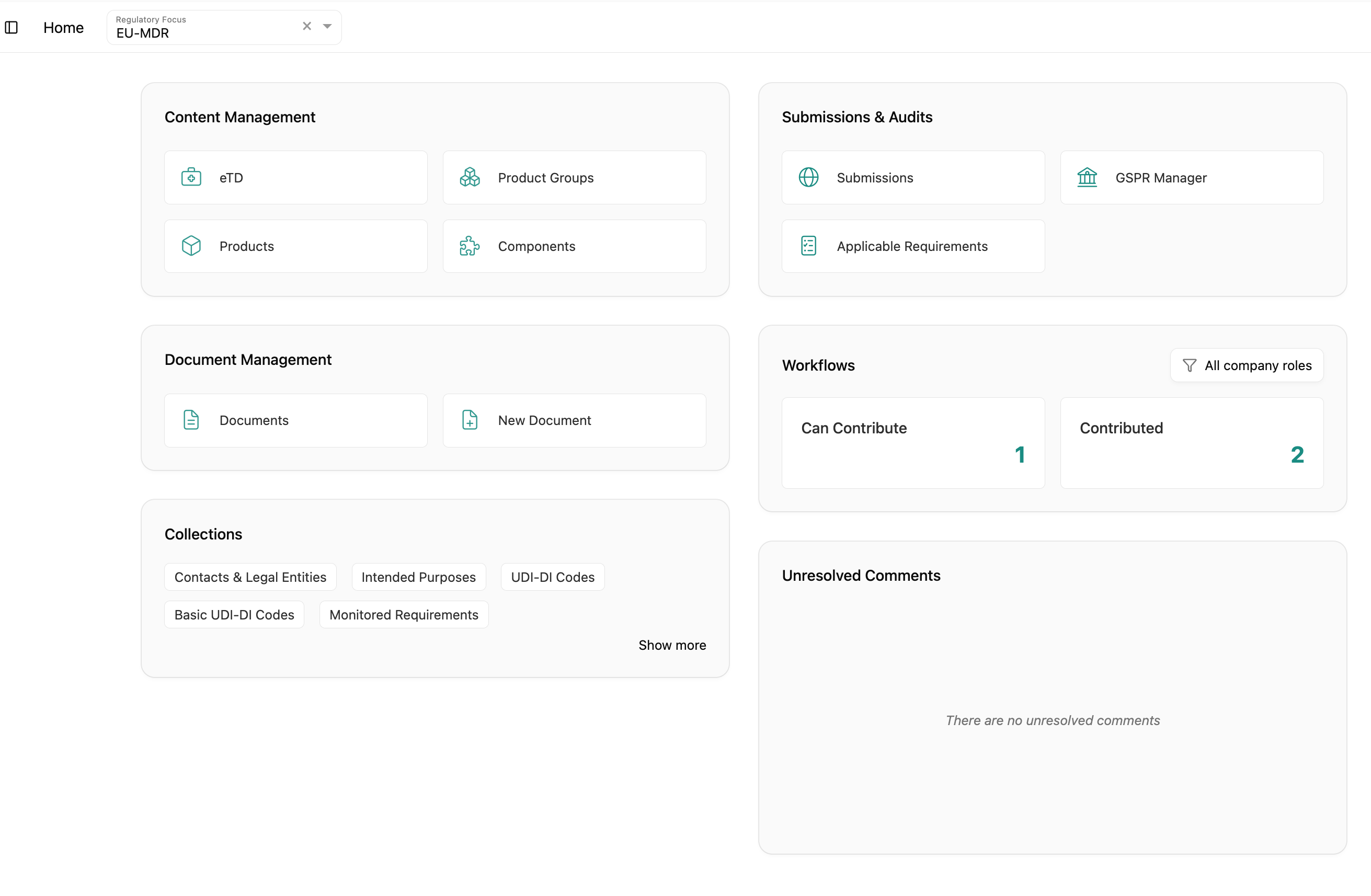
When navigating to the workflow - either through the workflow batch on the dashboard or directly through the entry, the user with the right roles to perform a workflow step will see a consolidated view of the audit trail, showing changes made since the last major version. This makes it easy to identify what has been modified and is now subject to approval.
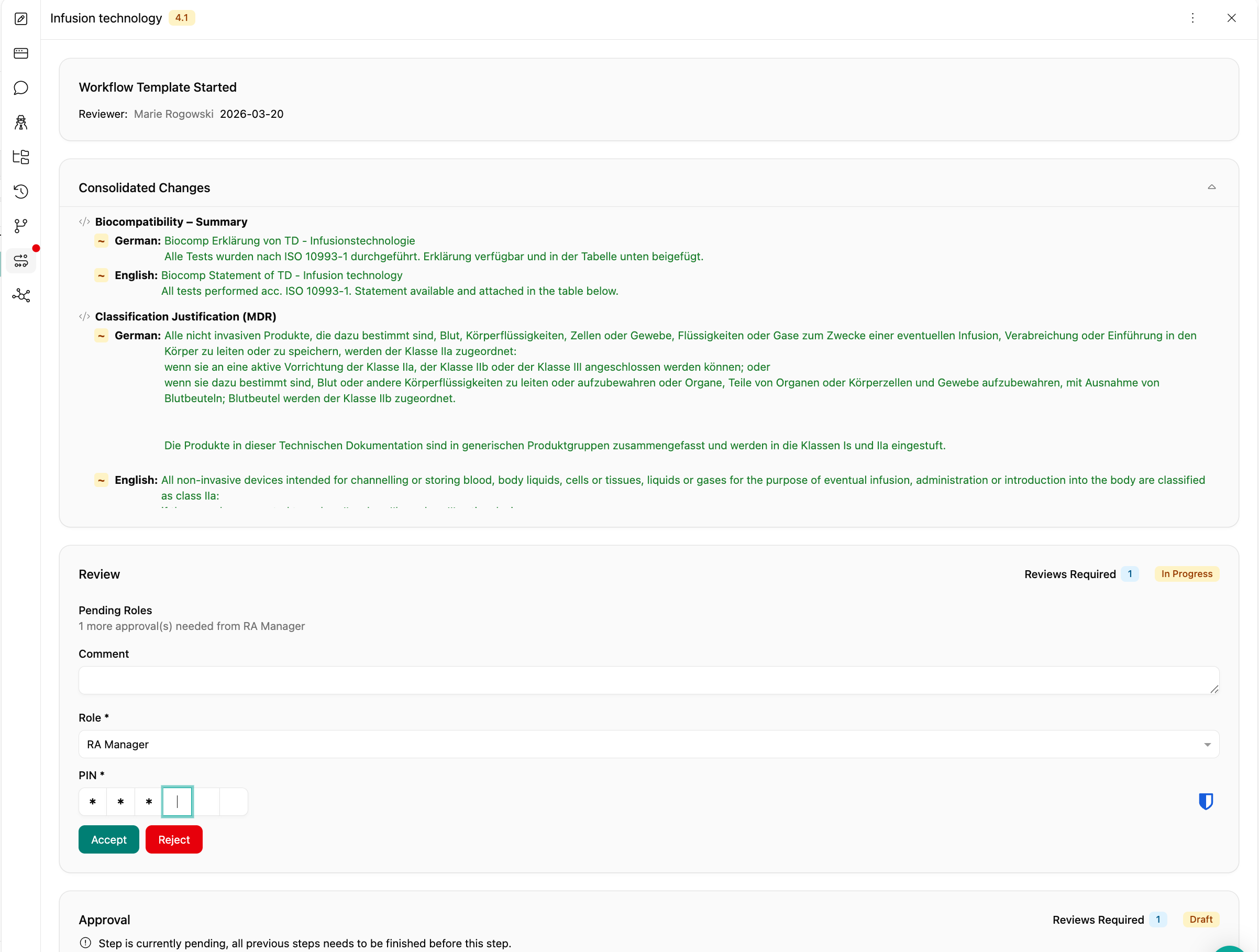
A comment field (optional) can be used to provide context for the person taking the next step, and a required PIN field ensures that each step is authorized appropriately.
If the user does not approve with the data changes and decides to reject the change, the comment field becomes required, so that the reason is documented and traceable. The reject will stop the workflow and leave the entry in draft mode.
2. Workflow Templates
Workflows are managed via templates, which can be customized and assigned to specific collections OR specific Document Types. Each workflow template defines the roles that can participate in each step. The default template in meddevo uses the standard two-step process, but you can create custom workflows tailored to your needs. The configuration of workflows is described in Workflow Templates.
3. Tracking and Auditing
The results of each workflow are recorded in the audit trail. This shows not only which steps were taken but also the timestamps and the users who participated in the workflow, ensuring full traceability of the process.
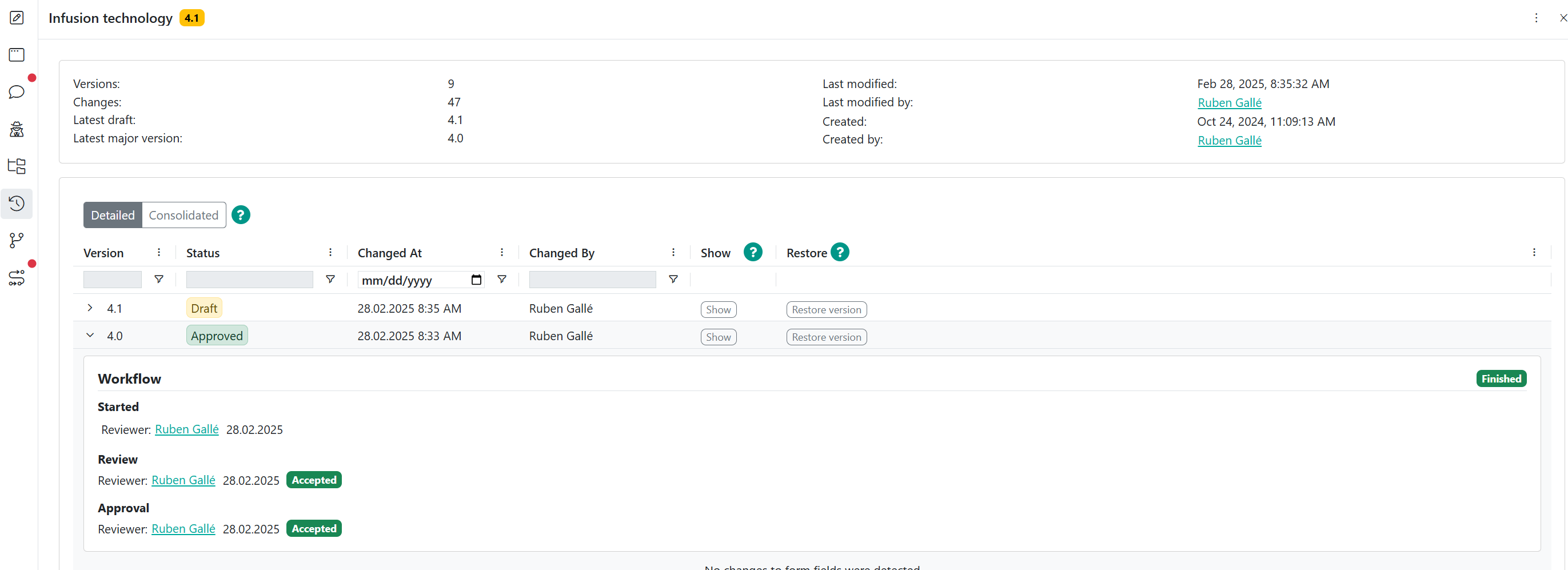
This can also be included in Writer Documents with the block "Table of Approval" showing the digital signature in your approved document.