
Office Integration Tool
Overview
The Office integration in meddevo allows you to open and edit Office files (Word, Excel, PowerPoint, and compatible LibreOffice formats) directly from meddevo in your local Office application. No manual downloading or re-uploading is required.
Requirements
Before you start, please ensure the following conditions are met:
- A compatible Office application is installed on your computer (e.g., Microsoft Office or LibreOffice).
- The "Edit with Office" feature is enabled for your workspace in meddevo. If you do not see the button, contact your administrator.
- You are working with the latest version of the document entry.
- The file format is supported (see Notes section).
Step-by-Step Instructions
- Open the document in meddevo
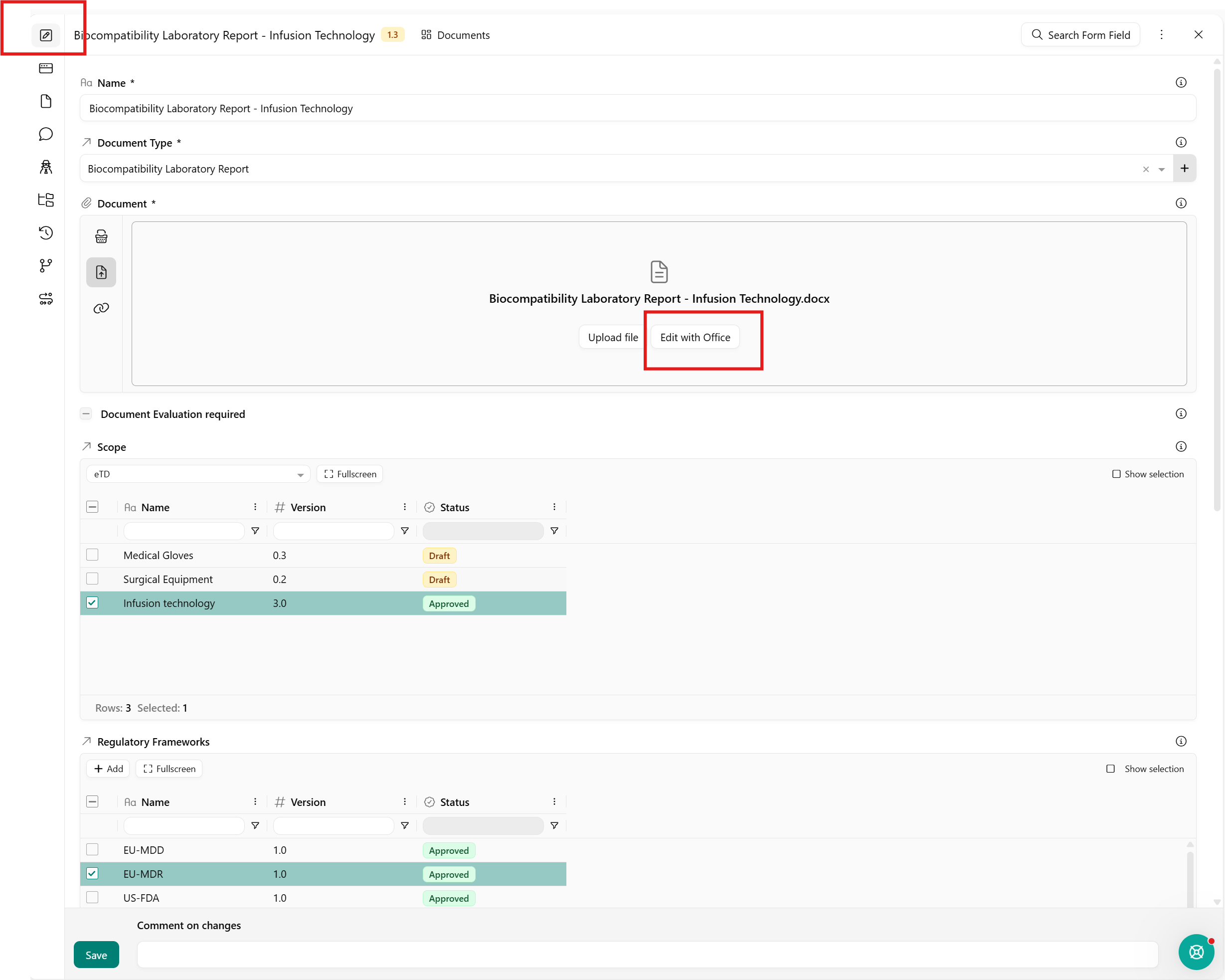
- Navigate to the desired document in your workspace (via folder preview or document collection) and go in edit mode.
- Select "Edit with Office"
- Click the "Edit with Office" button next to the file.
- Open the file
- The document will open automatically in the appropriate Office application on your computer.
- Edit your file
- Make your changes as usual within your Office application.
- Save and close
- Save your changes in the Office application and close the file.
- meddevo will automatically create a new version of the document and record the changes in the audit trail.
- Done!
- Your updated file, including its version history, is now stored in meddevo with no additional upload required.
Notes
Versioning
Each editing session via "Edit with Office" automatically creates a new document version.
Supported Formats
- Word / Writer: .docx, .doc, .docm, .dotx, .dotm, .odt
- Excel / Calc: .xlsx, .xls, .xlsm, .xlsb, .ods
- PowerPoint / Impress: .pptx, .ppt, .pptm, .odp
Note: Writer documents created natively in meddevo cannot be edited via Office integration.
File Locking
- Single-user editing: Only one person can edit a document at a time using "Edit with Office." While open, the file is locked for others.
- Status display: Other users will see who currently has the file open.
- Automatic unlock: The lock is released automatically once the file is closed.
- Manual unlock: If a file remains locked (e.g., after a session interruption), you will see the option "Unlock and open in Office".

Troubleshooting
- "Edit with Office" button not visible: The feature might not be enabled for your workspace, or the file type is not supported. Contact your administrator.
- Office application doesn't open: Check that a compatible Office application is installed and permitted to open by your browser.
- File locked but no one is editing: Click "Unlock and open in Office" to release the lock and access the file.
- Changes not saved back to meddevo: Always save the document in your Office application before closing it.
Last updated: 6/5/26, 11:20 AM