
Learn about Company Roles
The Company Roles set up by default allow you to get started quickly with our software.
In our system, users are assigned Company Roles in order to obtain authorizations for workflow processes.
1. You can access the settings via the Administration and then the Company roles button (1) 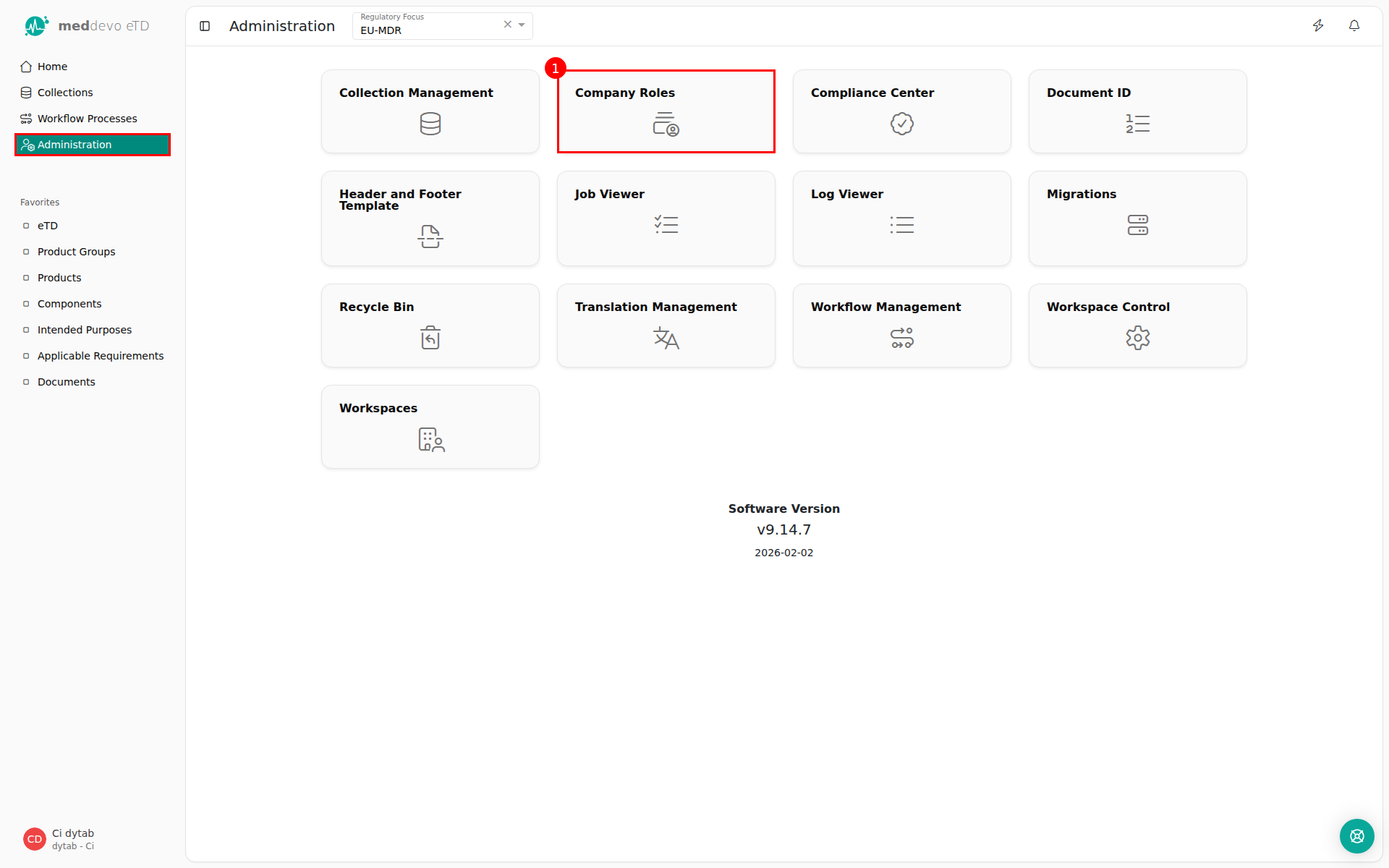
- Role of the RA Manager
In the standard workflow, the RA Manager is authorised to start workflows and perform the verification step.
- Role of the RA Director
In the default workflow the RA Director is allowed to perform the approval step
2. You can create an additional role by pressing the "+ Add" button (3)
You can already see the two preset roles in the list.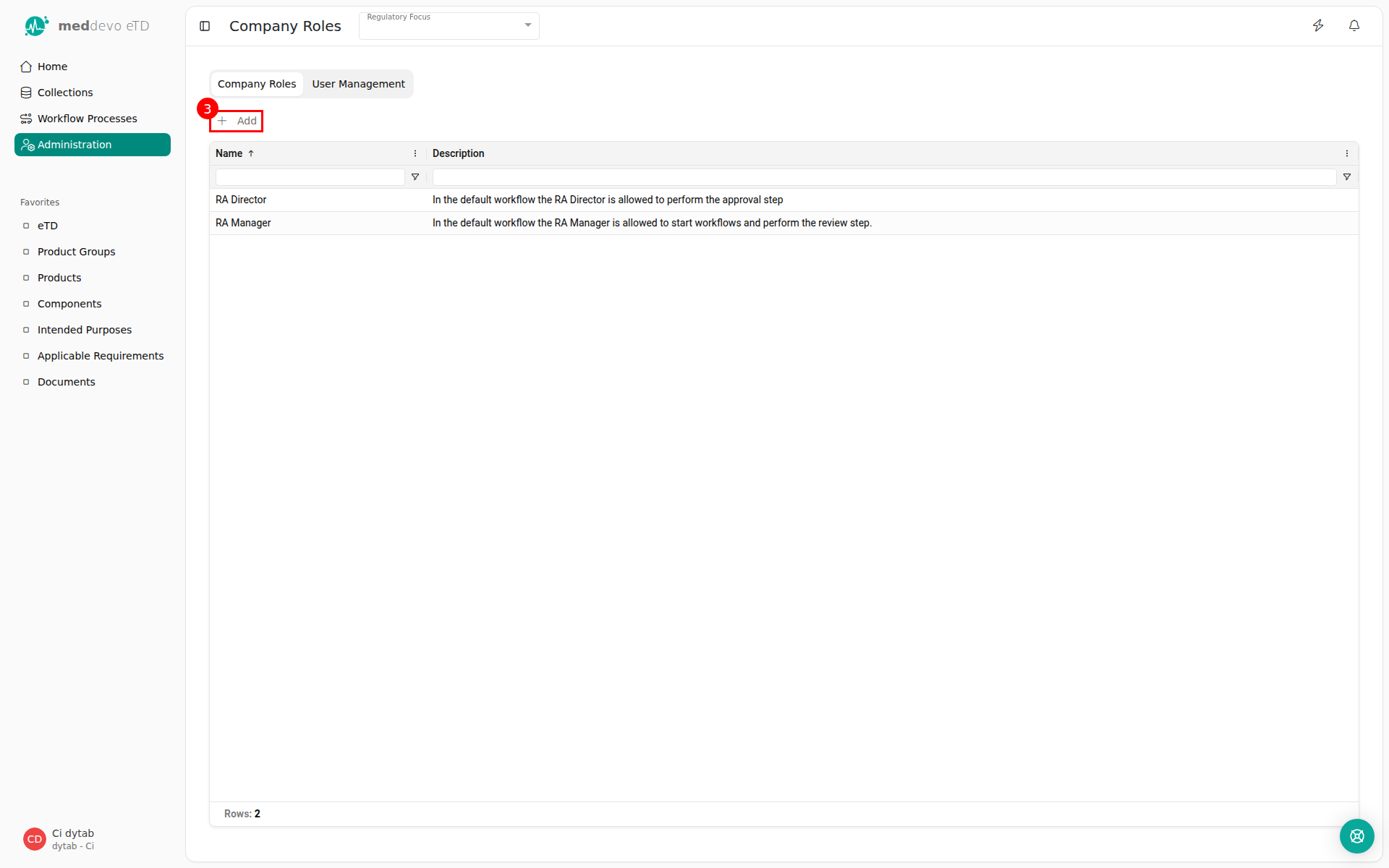
3. Assign a name and, if applicable, a description and hit the "Save" button.
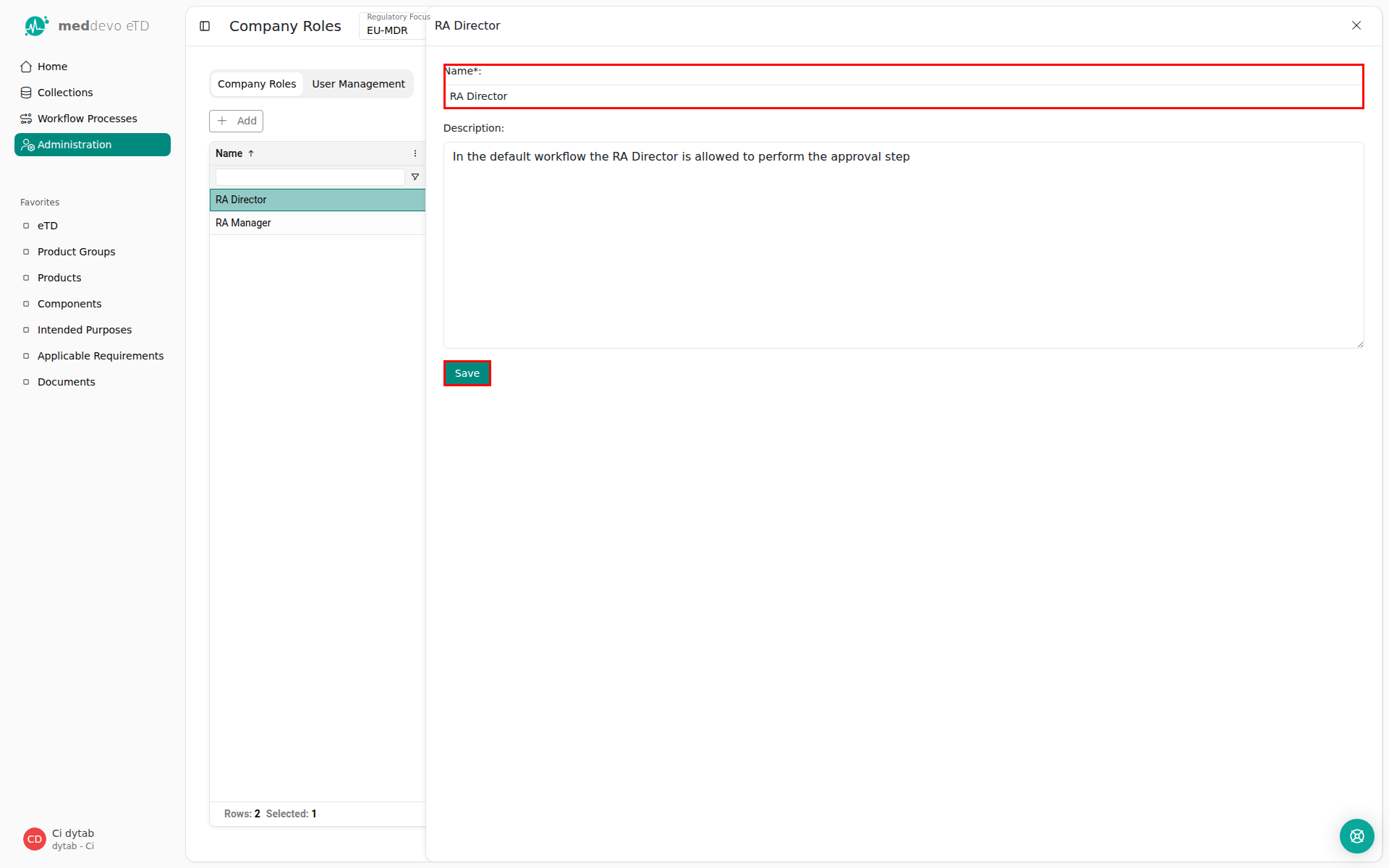
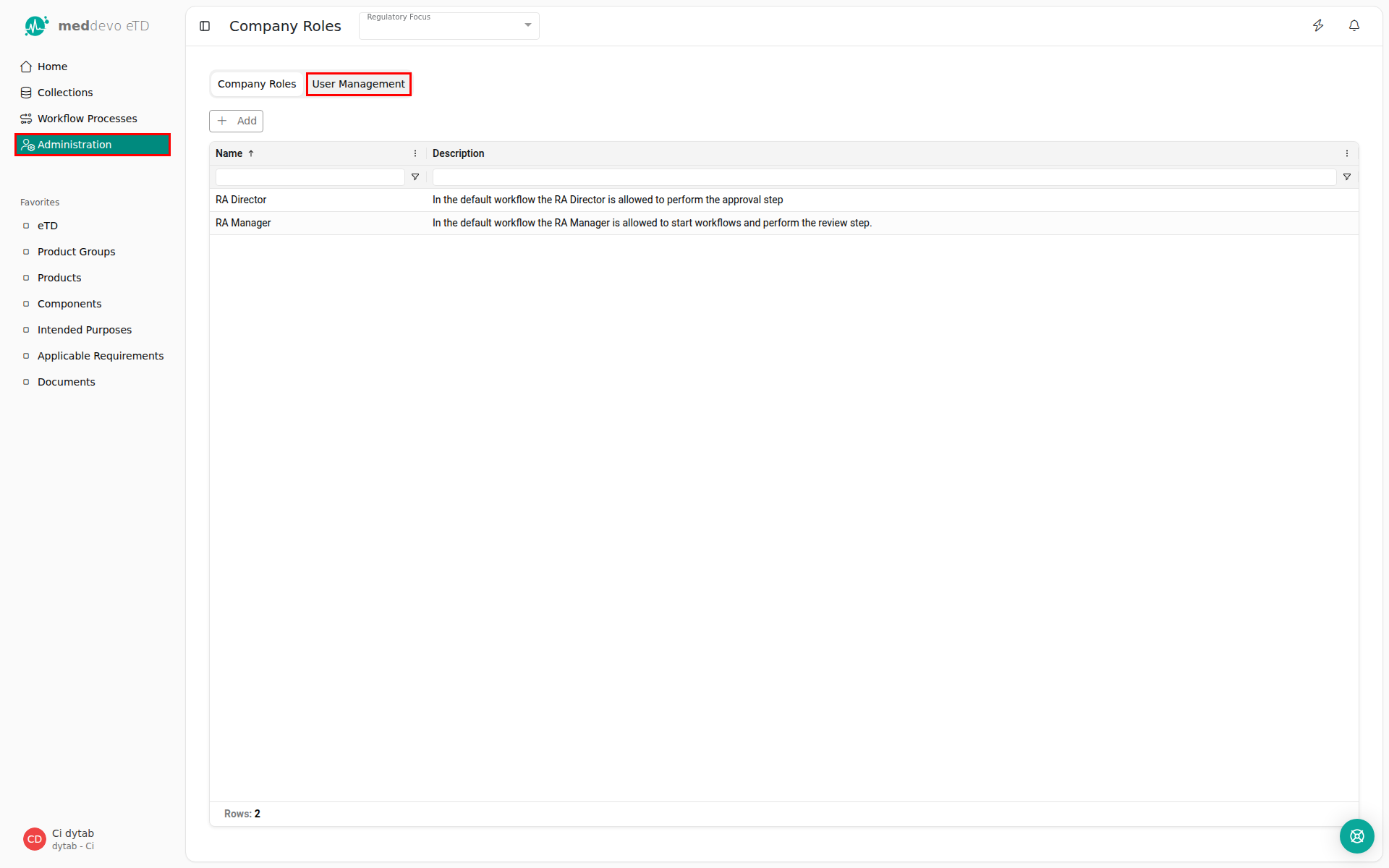
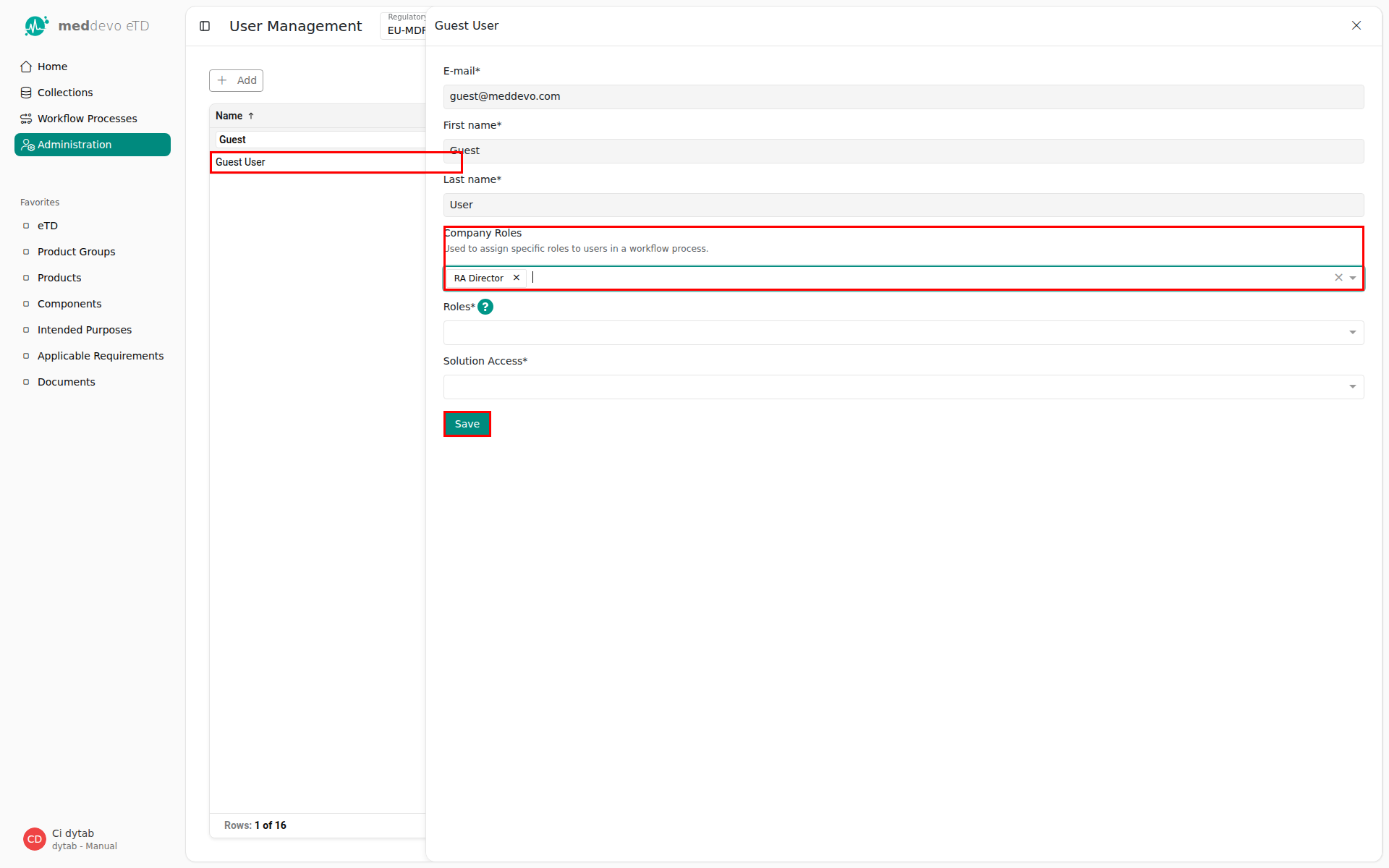
4. To assign this new company role to a user, go back to "Administration" and click on the "User Management" tile
5. You can now assign the corresponding "Company Role" to the previously invited "Guest User". Finally press the "Save" button.
To create a new user, please refer to our manual article User Management - Creating a New User.