
Create a new User
New Users are no longer created directly in meddevo - instead, the user management is displayed in the App Dashboard visible right after login.
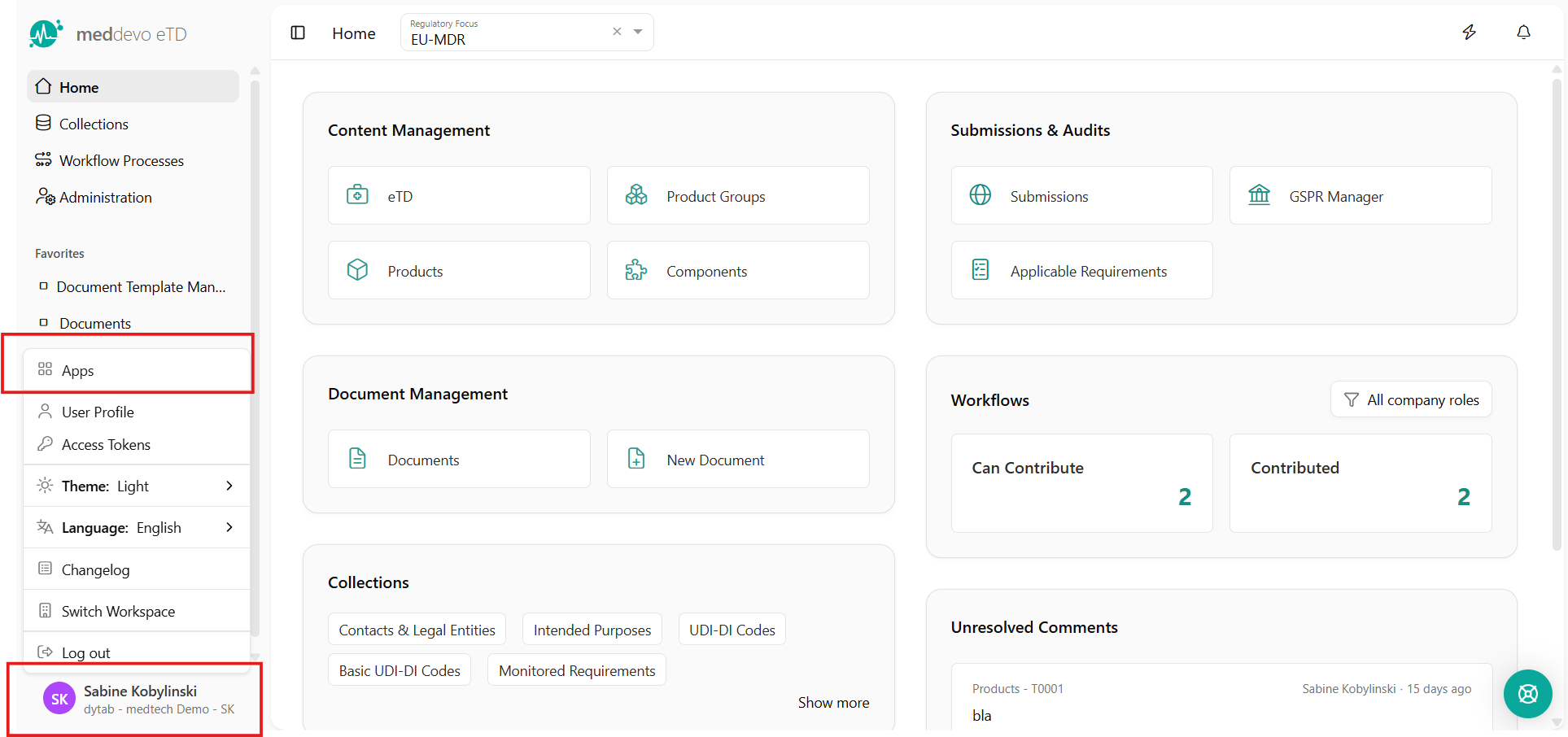
If you are in meddevo, click on your user name at the bottom, then you can click "Apps" to navigate back to the App Dashboard you see directly after login.
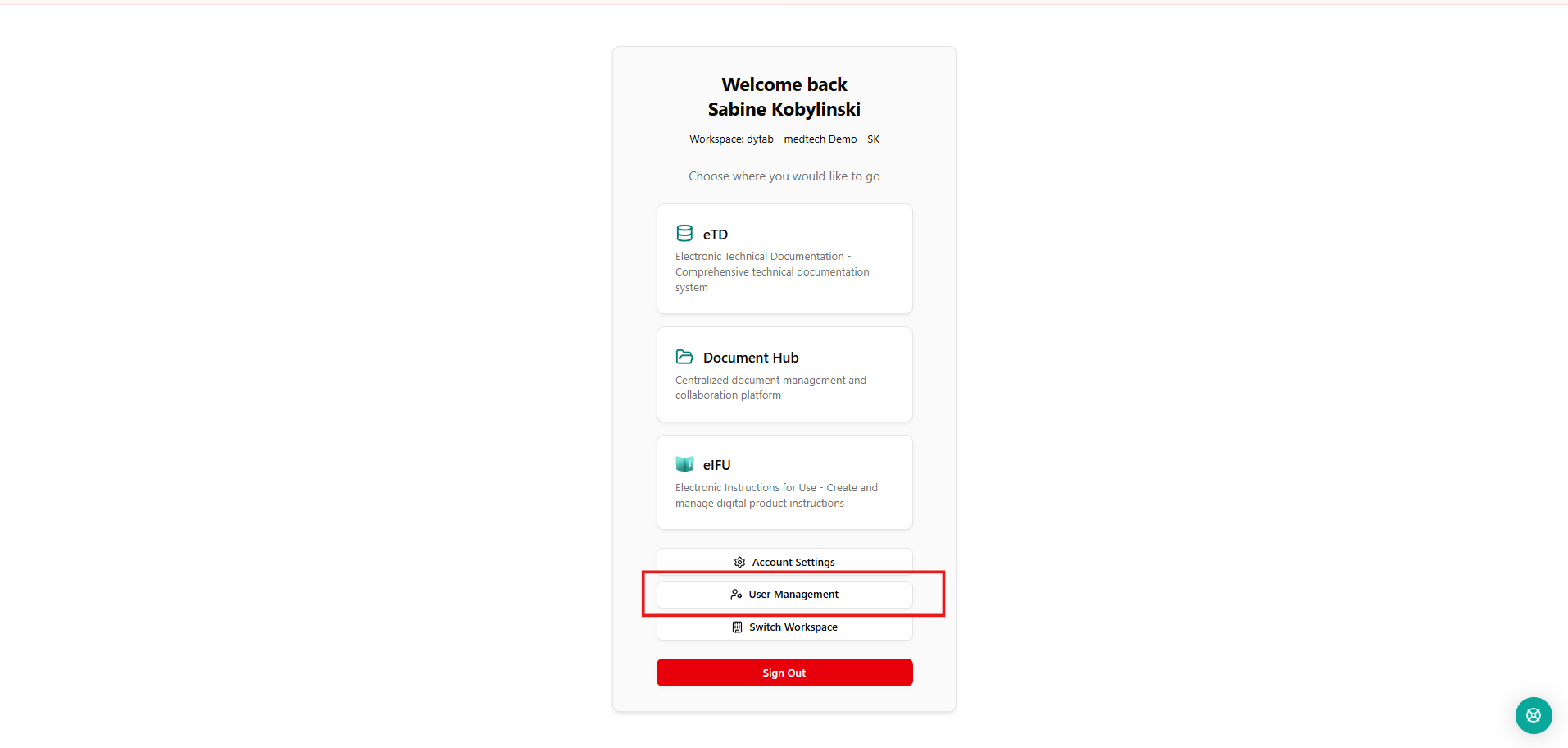
On the Dashboard, select the "User Management" at the bottom.
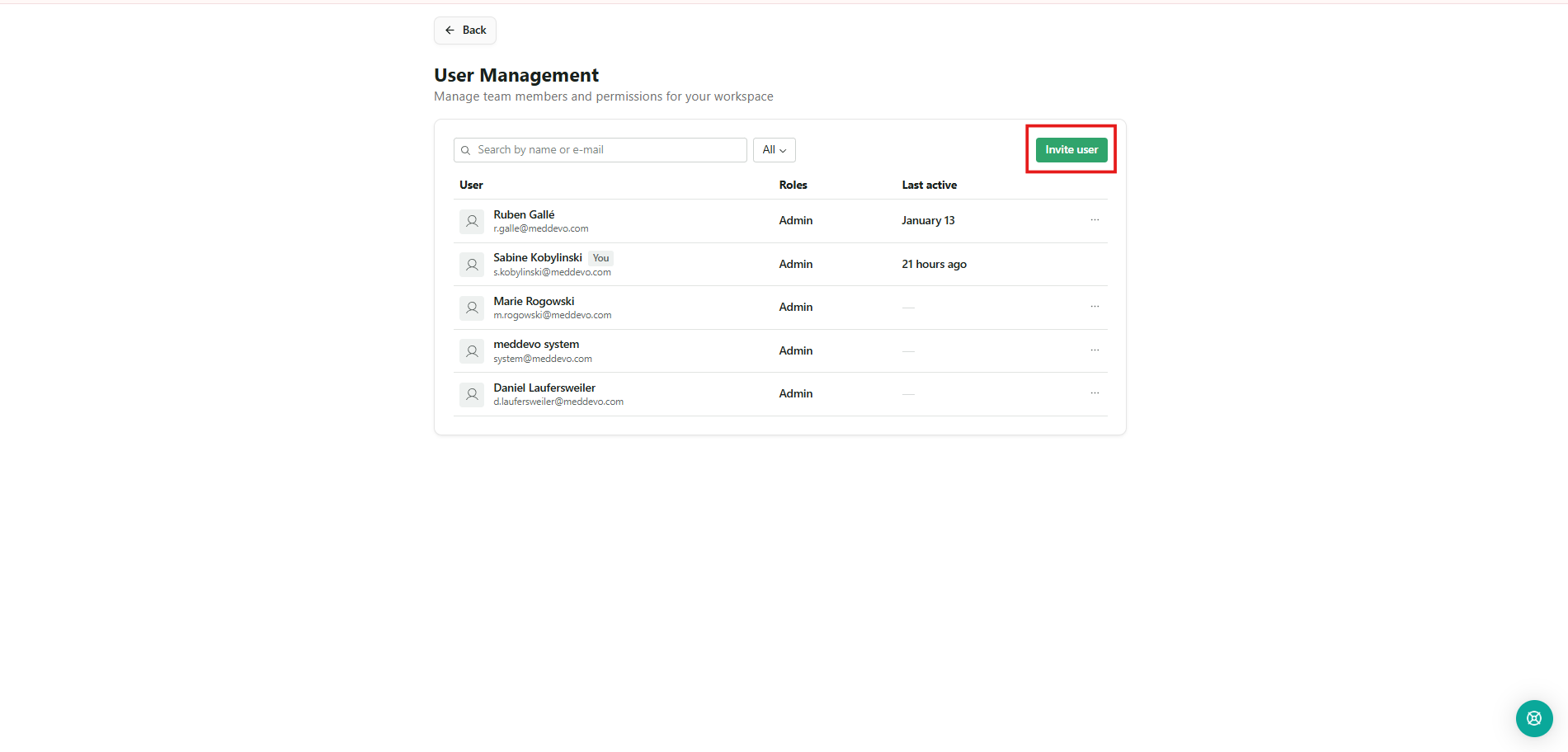
In the User Management, click the button "Invite user" and fill out the required information (Email Address and Access Role). For more information on the Access Roles, please consult our article User Access Roles in meddevo: Overview and Application.
The user will receive an email informing him that he was invited to meddevo. Through the link provided in the email, they can then set up their meddevo account.
Troubleshooting
If the invitation mail did not reach the new user:
1. Please check the spam/junk folder.
2. Use the "Resend invitation" function to send a new invitation e-mail. The "Resent" function can be found when clicking the three dots on the right side next to each user.
4. If the invitation mail does still not reach the user, contact the meddevo support.