
Creating a HAR File
A HAR file (HTTP Archive File) helps us identify and resolve issues in meddevo more quickly. The HAR file records all data exchanges between your browser and meddevo. We often need such a log, especially in cases of loading issues, interruptions, or errors when saving, in order to find out the root cause.
Please only send a HAR file to the meddevo team, and only via the designated channels (such as Intercom). A HAR file may contain sensitive data.
How to create a HAR file:
1. Reproduce the issue
Before you start the recording:
- Be prepared to repeat the process that triggers the error.
- Make sure you know exactly where to start and what exact steps are needed.
2. Open your browser's developer tools
Chrome & Edge (recommended):
- Open meddevo in a new tab.
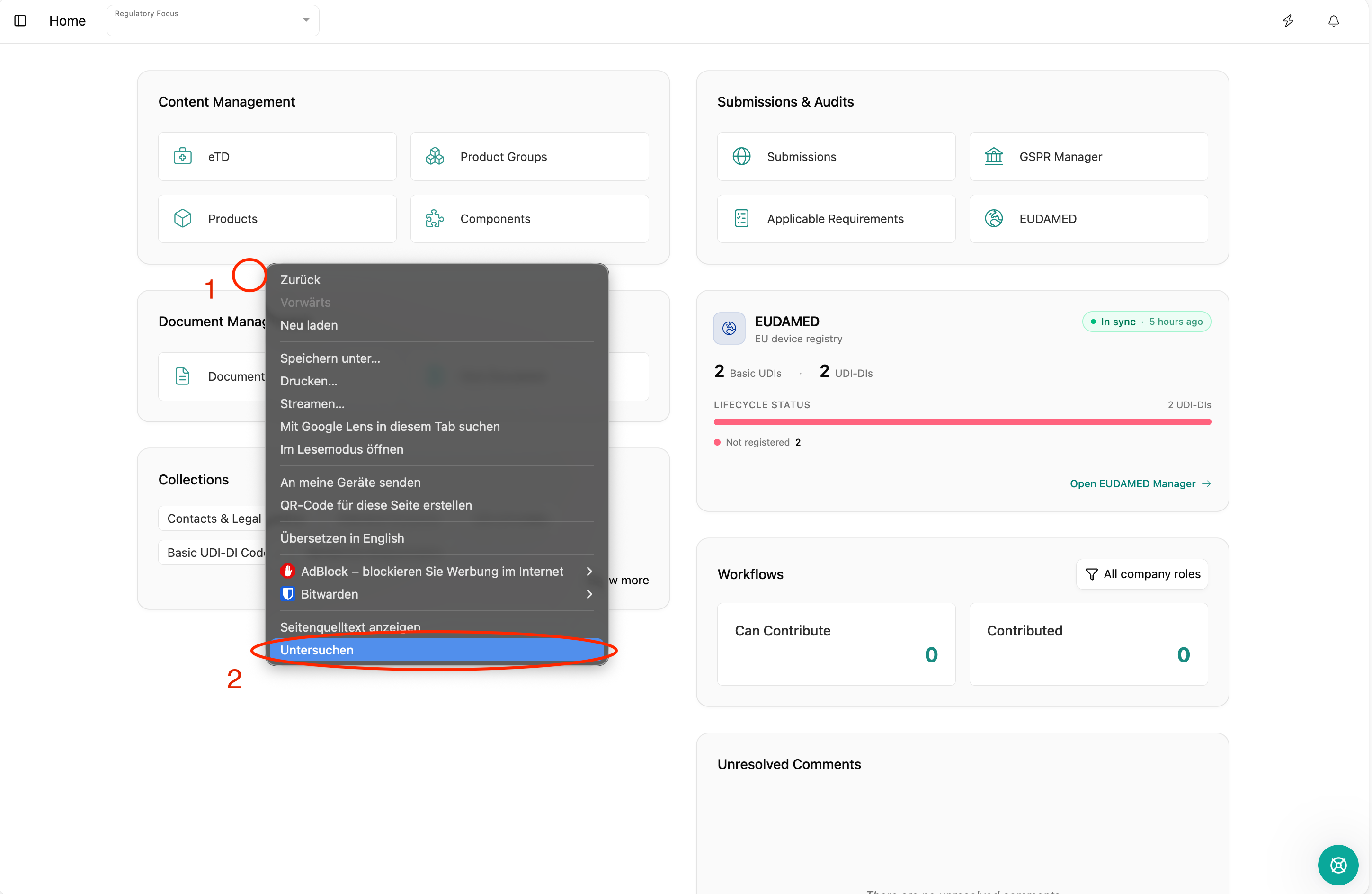
- Press F12 on your keyboard, or right-click on the page and select Inspect.
- In the developer tools window, navigate to the "Network" tab.
Firefox:
- Open meddevo.
- Press F12, or right-click and select "Inspect Element".
- Click on the "Network" tab at the top.
3. Start network recording
- Navigate to the Network tab in your browser’s Developer Tools.
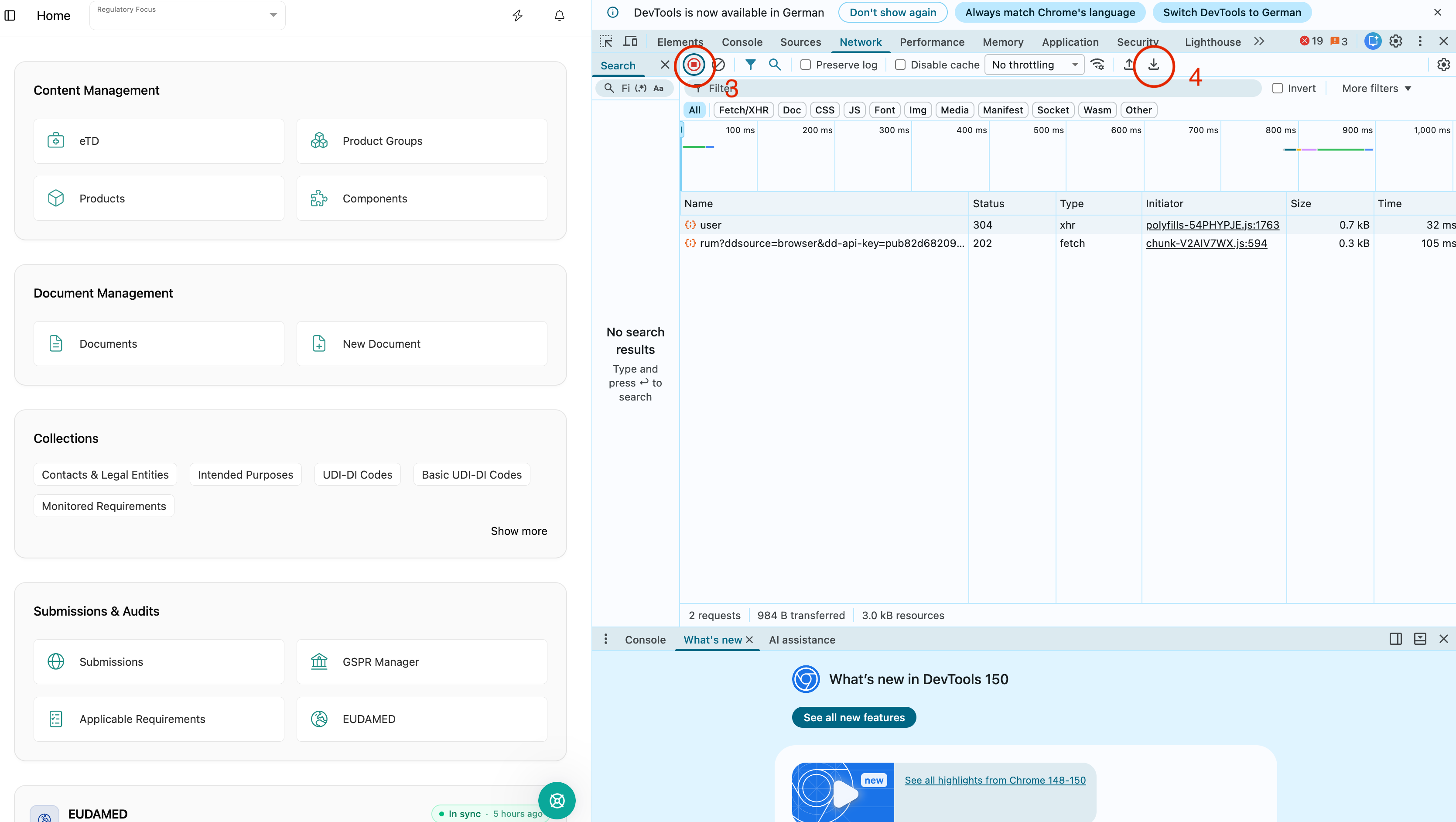
- Make sure the network recording is active (the red circle at the top left should be on).
- If necessary, click the small red circle to start recording.
4. Reload the page
- Reload the page with F5 or by clicking the Reload button to capture all network activity.
- Go through the steps that trigger the issue.
- Wait until the error appears or the behavior you want to report occurs.
5. Export the HAR file
- After the problem occurs:
- Chrome/Edge: Right-click in the list of recorded network activities and select "Save all as HAR with content".
- Firefox: Click on the gear icon and then on "Save all as HAR" or "Export HAR" (or similar wording).
- Save the file to a location where you can find it easily.
6. Attach HAR file and submit your ticket
- Open our Bug Report form as usual.
- Attach the HAR file under "Attach screenshots or files" before submitting the ticket.
Important notes:
- Please never send HAR files to individual team members, but always via the ticket system. This ensures that the data is properly assigned and our whole team has access to it.
- HAR files may contain sensitive information such as login credentials, names, or form entries. Please make sure HAR files are only exchanged between you and meddevo and cannot fall into the hands of third parties.